javaniceday.com

  • Home
  • AboutAbout me
  • Subscribe
  • SalesforceSalesforce related content
  • Node JSNodejs related content
  • JavaJava related content
  • Electric Vehicles
  • Autos Eléctricos
  • Estaciones de carga UTE
  • Mapa cargadores autos eléctricos en Uruguay
  • How to add a pie chart in Campaign’s record page in Salesforce

    May 11th, 2021

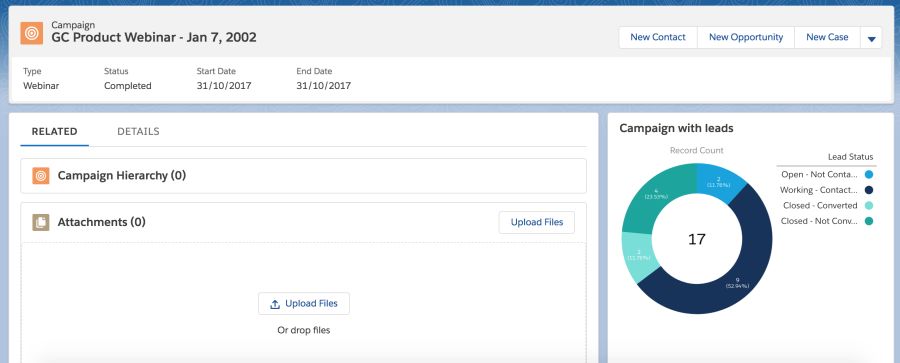
    What about if we add a component with a pie chart on the Campaign object’s record page? It’s very useful to see how the campaign is going in terms of leads’ statuses. So we want to know the percentage of leads converted, not converted, contacted, etc.

    I will use Lightning in a Developer org that I just created to take advantage of its default data. So let’s go!

    Assumption

    You are familiar with a Salesforce org, Lightning and you have created some reports in the past. If you haven’t created any report yet, you can read this module in Trailhead: Reports & Dashboards for Lightning Experience

    Add leads to a campaign

    First of all, let’s add some leads to a campaign. You only have to add leads to a campaign, you don’t have to create any data.

    Create the report

    Go to Reports, New Report, expand Campaigns, select Campaign with leads and click on Create.

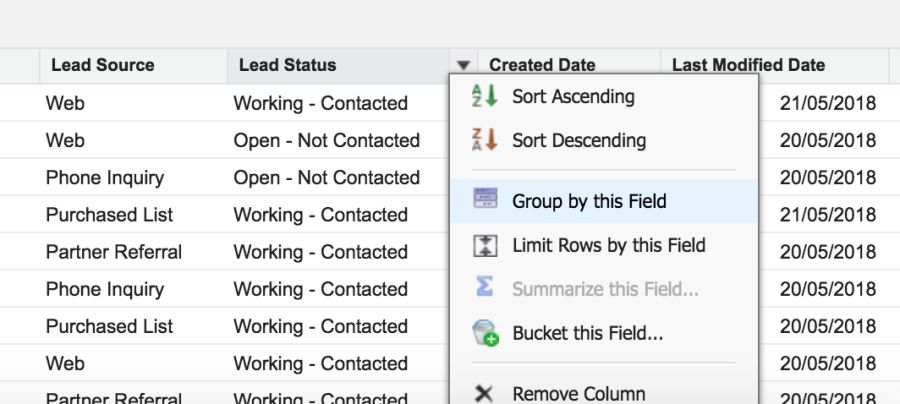
    Drag Lead status field and group by this field

    image

    Save the report with the name you want and, importantly, in a public folder.

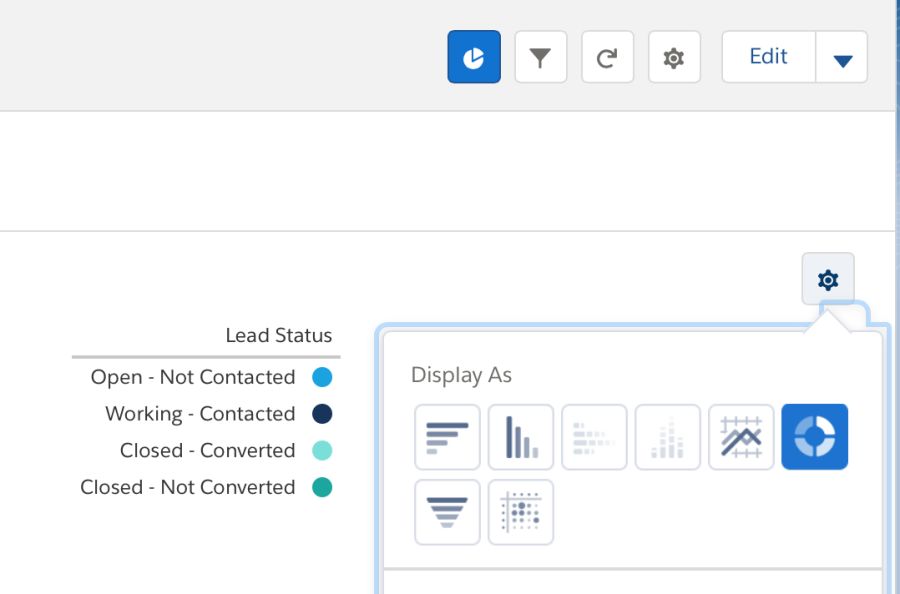
    Run the report and add a pie chart. Don’t forget to save it.

    image

    Add the report component

    Now let’s add our report to the Campaign’s record page.

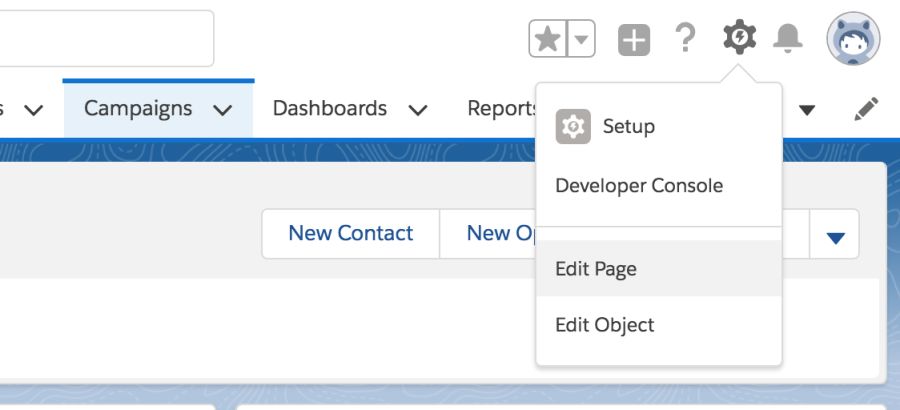
    Open any campaign and Edit Page to open the App Builder.

    image

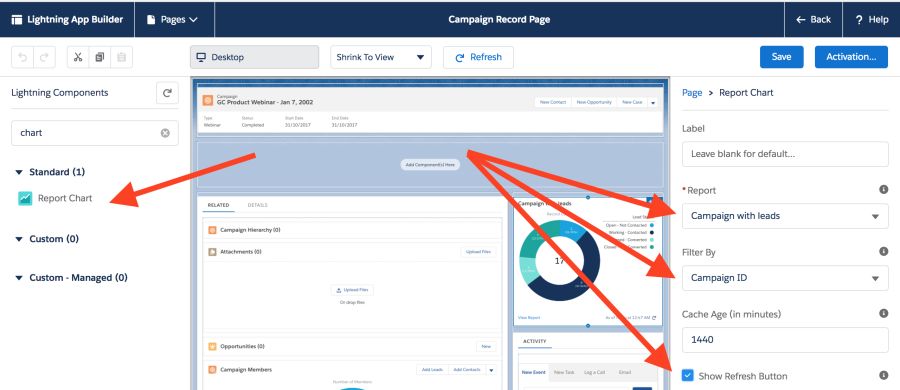
    Drag the Report Chart component and set those parameters

    image

    Save the page and press Back to see the record page again with the report

    image

    Photo by Lukas Blazek on Unsplash

    Share this:

    • Click to share on X (Opens in new window) X
    • Click to share on LinkedIn (Opens in new window) LinkedIn
    • Click to share on Reddit (Opens in new window) Reddit
    • Click to email a link to a friend (Opens in new window) Email
    Like Loading…
  • Install Postgres locally in MacOS

    May 11th, 2021

    Install using Brew package manager

          
    brew update
    brew install postgres


    Config file

          
    /usr/local/var/postgres/postgresql.conf 


    Useful commands

          
    brew services start postgresql
    brew services restart postgresql
    brew services stop postgresql


    psql command

    “psql is a terminal-based front-end to PostgreSQL. It enables you to type in queries interactively, issue them to PostgreSQL, and see the query results.”

    Run psql and you will see the following error

          
    $ psql
    psql: error: could not connect to server: FATAL:  database "andrescanavesi" does not exist


    So let’s create a db with that name in order to play with it

          
    createdb andrescanavesi


    List available databases

          
    l


    Use a specific database

          
    c andrescanavesi 


    List tables

          
    dt


    See your version

          
    SELECT version();


    Resources

    • https://www.datacamp.com/community/tutorials/10-command-line-utilities-postgresql
    • https://gist.github.com/ibraheem4/ce5ccd3e4d7a65589ce84f2a3b7c23a3
    Photo by Jan Antonin Kolar on Unsplash

    Share this:

    • Click to share on X (Opens in new window) X
    • Click to share on LinkedIn (Opens in new window) LinkedIn
    • Click to share on Reddit (Opens in new window) Reddit
    • Click to email a link to a friend (Opens in new window) Email
    Like Loading…
  • How to connect to a PostgreSQL database in Node.js

    May 11th, 2021

    A simple example about how to connect to a PostgreSQL database using Node.js

    Let’s create a folder to host our example. Open a terminal and type:

          
    mkdir node-js-postgresql


    Enter to the folder

          
    cd node-js-postgresql


    Use package.json generator. Follow the steps

          
    npm init
    npm install


    Install pg module in our project

          
    npm install pg --save


    In case you have a database url connection you will have to parse it. There’s a module to parse such as url. Example url:

          
    postgres://hfbwxykfdgkurg:a75568307daad4b1432b5d173719ba7ba908ea06e7d0ebe8bf7bd434eb655547@ec2-108-21-167-137.compute-1.amazonaws.com:5432/w5tftigeor6odh


    Install the module

          
    npm install parse-database-url --save


    Create a file called db_helper.js

          
    const parseDbUrl = require("parse-database-url");
     
    //we have our connection url in an environment config variable. Each developer will have his own
    //a connection url will look like this:
    //postgres://hfbwxykfdgkurg:a75568307daad4wb1432b5d173719bae7ba908ea06e7d0ebef8bf7bd434eb655547@ec2-108-21-167-137.compute-1.amazonaws.com:5432/w5tftigeor6odh
    const dbConfig = parseDbUrl(process.env.DATABASE_URL);
    const Pool = require("pg").Pool;
    const pool = new Pool({
        user: dbConfig.user,
        host: dbConfig.host,
        database: dbConfig.database,
        password: dbConfig.password,
        port: dbConfig.port,
        ssl: true,
    });
     
    module.exports.execute = pool;


    In the line number 6 we have a call to a configuration environment variable

          
    process.env.DATABASE_URL


    It’s a good way to avoid versioning sensitive data like a database connection or other credentials. To run this example you can just hard-code it

    Create a file called index.js

          
    const dbHelper = require("./db_helper");
     
    //deal with the promise
    findUserById(1234)
        .then(user => {
            console.info(user);
        })
        .catch(error => {
            console.error(error);
        });
     
    /**
     *
     * @param userId
     * @returns a Promise with the user row for the given id
     * @throws error if there's a connection issue or if the user was not found by the id
     */
    async function findUserById(userId) {
        const query = "SELECT * FROM users WHERE id = $1 LIMIT 1";
        const bindings = [userId];
        const result = await dbHelper.execute.query(query, bindings);
        if (result.rows.length > 0) {
            return result.rows[0];
        } else {
            throw Error("User not found by id " + userId);
        }
    }


    Run the example

          
    node index.js


    That’s it 🙂

    Full source code: https://github.com/andrescanavesi/node-js-postgresql

    Share this:

    • Click to share on X (Opens in new window) X
    • Click to share on LinkedIn (Opens in new window) LinkedIn
    • Click to share on Reddit (Opens in new window) Reddit
    • Click to email a link to a friend (Opens in new window) Email
    Like Loading…
  • Lazy load images with javascript

    May 11th, 2021

    Why should you load your images in a lazy way?

    Among other reasons:

    • Increase page speed
    • Better page rank
    • More visitors
    • Reduce bounce rate
    • Increase pages / session rate
    • Improve user experience
    • Reduce infrastructure costs

    In a nutshell

    This is the process:

    • Modify all your tags by changing src by data-src or something else
    • Add a specific class to every image we want to load lazily.
    • Add a listener to know when the image is being displayed
    • Once the image is displayed, the listener will call our code to modify our image tag
    • The code will get the url from data-src and will update the src property.
    • The image will be loaded by the browser
    • Call the listener after the page loads

    Straight to the point

    I will use a third-party library called lozad. It’s pretty small and it loads super fast so it won’t have a big impact in your page loading.

    From Lozad docs:

    “Highly performant, light and configurable lazy loader in pure JS with no dependencies for images, iframes and more, using IntersectionObserver API”

    Include the script via CDN in your head tag of your page


    https://cdn.jsdelivr.net/npm/lozad/dist/lozad.min.js


    Unfortunately, you cannot use async property here since the script must be loaded before the page loads.

    Add this code in your page


    <script type="text/javascript">
      // I assume you are using jQuery. Otherwise you can use the classic way
      $(document).ready(() => {
        // to load images in a lazy way
        // lazy loads elements with default selector as '.lozad'
        const observer = lozad();
        observer.observe();
        console.info('lozad observing...');
      });
    </script>


    Of course you can move this code to a different script file (let say common.js) instead of your page.
    You only have to make sure that your file common.js is downloaded and ready to use before lozad call:

    
    const observer = lozad();
    observer.observe();


    The last step is to modify all your images you want to load lazily.

    Before:

    
    <img src="image.jpg" class="yourClass" alt="your image description" />


    After:

    
    <img data-src="image.jpg" class="lozad yourClass" alt="your image description" />


    You can see more options here https://apoorv.pro/lozad.js/

    It’s important you add alt=”your image description” because that text will be displayed while the image is loading. This will give a better user experience to your visitors.

    Demo

    Resources

    • https://github.com/ApoorvSaxena/lozad.js

    • https://www.sitepoint.com/five-techniques-lazy-load-images-website-performance/
    Photo by elizabeth lies on Unsplash

    Share this:

    • Click to share on X (Opens in new window) X
    • Click to share on LinkedIn (Opens in new window) LinkedIn
    • Click to share on Reddit (Opens in new window) Reddit
    • Click to email a link to a friend (Opens in new window) Email
    Like Loading…
  • Delete all keys by a prefix in Redis cluster

    May 11th, 2021

    Delete all the keys by a given prefix in a Redis cluster.

    Let’s ping our Redis instance

       
    redis-cli -h myhost.com -p 6379 ping


    Set some keys

       
    redis-cli -h myhost.com -p 6379 SET dev1 "val1"
    redis-cli -h myhost.com -p 6379 SET dev2 "val2"
    redis-cli -h myhost.com -p 6379 SET dev3 "val3"


    Get one key

       
    redis-cli -h myhost.com -p 6379 KEYS dev1 


    Delete one key

       
    redis-cli -h myhost.com -p 6379 DEL dev1 


    Now let’s go with our massive deletion algorithm but before making any deletion let’s test the algorithm without making changes.

       
    for key in `echo 'KEYS dev*' | redis-cli -c -h myhost.com -p 6379 | awk '{print $1}'`
      do echo KEYS $key
    done | redis-cli -c -h myhost.com -p 6379


    And then when you are sure, go ahead with the deletion

       
    for key in `echo 'KEYS dev*' | redis-cli -c -h myhost.com -p 6379 | awk '{print $1}'`
      do echo DEL $key
    done | redis-cli -c -h myhost.com -p 6379


    In case you are not using a cluster just remove the -c options from redis-cli

    Photo by u j e s h on Unsplash

    Share this:

    • Click to share on X (Opens in new window) X
    • Click to share on LinkedIn (Opens in new window) LinkedIn
    • Click to share on Reddit (Opens in new window) Reddit
    • Click to email a link to a friend (Opens in new window) Email
    Like Loading…
  • Install and run Redis locally

    May 11th, 2021

    The easiest way is through Brew, a package manager. So if you have not installed yet, run this:

          
    $ /bin/bash -c "$(curl -fsSL https://raw.githubusercontent.com/Homebrew/install/master/install.sh)"


    $ brew update
    $ brew install redis


    Start the service

          
    $ brew services start redis


    Ping in order to see if it is running properly

          
    $ redis-cli ping
    PONG


    Another option is to enter to the prompt and run commands from there

          
    $ redis-cli
    127.0.0.1:6379> ping
    PONG


    To stop the service run:

          
    $ brew services stop redis


    Redis configuration file:

          
    /usr/local/etc/redis.conf


    Uninstall Redis and all related files.

          
    $ brew uninstall redis
    $ rm ~/Library/LaunchAgents/homebrew.mxcl.redis.plist


    Now you can play with more commands such as Delete all keys by a prefix in Redis cluster

    Guide based on this document

    Photo by Carl Nenzen Loven on Unsplash

    Share this:

    • Click to share on X (Opens in new window) X
    • Click to share on LinkedIn (Opens in new window) LinkedIn
    • Click to share on Reddit (Opens in new window) Reddit
    • Click to email a link to a friend (Opens in new window) Email
    Like Loading…
  • Dealing with customers

    May 11th, 2021

    A post written by Jozsef Torsan that I would like to share here.

    —

    I receive many emails from customers. I’m happy that more than 90% of these emails are about feature requests and not bugs. A small part of the emails is “how to” questions and an even smaller part is about reporting bugs. Since the last year’s October launch only 3 customers contacted me with bugs. 2 of them had ran into the emoji issue and one of them contacted me just last week with an issue about having an incorrect size of the Add Bookmark window in Opera. Fortunately it was an easy fix and I was I able to fix it by the next day. The truth is Opera was not among the browsers (Chrome, Firefox, IE, Edge, Mac Safari) I tested — shame on me. Anyway it’s worth to check the browser statistics and the trends on this page. It can give you a good hint when you plan the testing of your app in the different browsers.

    The “always and ASAP” rule

    My number one rule is to always give a response to the customer as soon as possible. “Always” means that even if I don’t have the answer or the solution to their question or problem right away, I inform them in an email about when I will be able to get back to them with the answer. “ASAP” means within 24 hours. If you can provide the solution or the answer for the customer only in a week, that’s not a problem. But it’s important to inform them about it within a 24 hour time frame. Regarding the priorities it’s obvious that the “how to” and “bug” emails get priority over the “feature request” emails.

    The value you give to your Customers

    You can give value to your customers not just with your product or service but with your customer support, too. Whenever a user contacts you it’s a good opportunity to show them how professional your customer support is. It sounds weird but you are lucky if a customer contacts you with a bug or a question. On the one hand you can fix a bug that you didn’t find during the testing, on the other hand you can show how professionally and quickly you can react and fix the bug or answer their question. Users choose a product not just considering the features and the quality of the products but the customer support is also very important for them. I often hear customers leaving a product due to the poor customer support.

    Special requests

    Sometimes I get special requests from customers. For example last week a user asked me if could make CSV reports about his bookmarks, tags, tabs and categories, because he wanted to make some kind of statistics on his bookmarks. I was surprised how enthusiastic he was so I was happy to help him. I quickly wrote 2 SQL queries, ran the queries and sent him the output. He was very grateful and promised me that he would update me with his statistics.

    Other times it happened, that users wanted to purchase the annual Ninja subscription after the trial expired, but they couldn’t make the payment due to temporary problems with their bank accounts or credit cards. After they contacted me I offered them to extend the trial with 1 or 2 weeks. And 1 or 2 weeks later they purchased the annual subscription. It’s that easy to make customers happy and satisfied.

    The hard core Ninja Users

    There are quite a few very enthusiastic customers who are big Ninja fans. They are the hard core Ninja users. They keep sending me emails about their ideas, new feature requests and experiences. I love these guys! It’s like we would be a team that discusses the future developments of Ninja. We are in touch roughly on a weekly basis, so we communicate pretty frequently with each other. The input, the information I get from them is invaluable. Also if I have an idea or a new feature in my mind they are the ones I can ask about it.

    Customer support matters a lot

    If you put the effort in providing a good customer support, users will appreciate it. They will appreciate it very much. You will make your customers happy and they will tell other potential customers their good stories. But if they have bad experiences then it’s more likely that they will tell their friends about them.

    Original post

    Photo by Headway on Unsplash

    Share this:

    • Click to share on X (Opens in new window) X
    • Click to share on LinkedIn (Opens in new window) LinkedIn
    • Click to share on Reddit (Opens in new window) Reddit
    • Click to email a link to a friend (Opens in new window) Email
    Like Loading…
  • Dealing with concurrency in Node.js

    May 11th, 2021

    Even though the Event Loop is a single thread we have to take care of race condition since 99% of our code will run in a non-main thread.
    Callbacks and Promises are a good example of it. There are many resources along with World Wide Web about how Event Loop works like this one, so the idea of this post is to assume that we could have a resource in our code that could be accessed (read and write) by multiple threads.

    Here we have a small snippet that shows how to deal with a race condition. A common scenario is when we cache some data that was expensive to get in terms of CPU, network, file system or DB.

    Implementation

    We might implement a cache in multiple ways. A simple way is an in-memory collection; in this case, a Map. The structure of our collection can also be a List, that will depend on our requirements.

    Our Map holds users and we use the User ID as the Key and the User itself (through a Promise) the Value. That way, a method getUserById will be very fast: O(1).

    I’ll explain step by step but at the end of this post you have the full source code

    So let start by our map

          
    const cache = new Map();


    Our Map won’t be so smart in this example, it won’t expire elements after a while and it will add as many elements as available memory we have. An advanced solution is to add this kind of logic to avoid performance issues. Also, it will be empty after our server restarts, so is not persistent.

    Let’s create a collection of users that simulate our DB

          
    const users = [];
    function createSomeUsers() {
        for (let i = 0; i < 10; i++) {
            const user = {
                id: i,
                name: 'user' + 1
            };
            users.push(user);
        }
    }


    The main method that we want to take care of race condition

          
    function getUserFromDB(userId) {
        let userPromise = cache.get(userId);
        if (typeof userPromise === 'undefined') {
            console.info('Loading ' + userId + ' user from DB...');//IT SHOULD BE executed only once for each user
            userPromise = new Promise(function (resolve, reject) {
                //setTimeout will be our executeDBQuery
                const threeSeconds = 1000 * 3;
                setTimeout(() => {
                    const user = users[userId];
                    resolve(user);
                }, threeSeconds);
            });
            //add the user from DB to our cache
            cache.set(userId, userPromise);
        }
        return userPromise;
    }


    To test our race condition we’ll need to create multiple callbacks that simulate a heavy operation.
    That simulation will be made with the classic setTimeout that will appear later.

          
      function getRandomTime() {
          return Math.round(Math.random() * 1000);
      }


    Finally the method that simulates the race condition

          
    function executeRace() {
        const userId = 3;
        //get the user #3 10 times to test race condition
        for (let i = 0; i  {
                getUserFromDB(userId).then((user) => {
                    console.log('[Thread ' + i + ']User result. ID: ' + user.id + ' NAME: ' + user.name);
                }).catch((err) => {
                    console.log(err);
                });
            }, getRandomTime());
            console.info('Thread ' + i + ' created');
        }
    }


    Our last step: call our methods to create some users and to execute the race condition

          
        createSomeUsers();
        executeRace();


    Let create a file called race_condition.js and execute it like this:

          
        node race_condition.js


    The output will be:

          
        Dummy users created
        Thread 0 created
        Thread 1 created
        Thread 2 created
        Thread 3 created
        Thread 4 created
        Thread 5 created
        Thread 6 created
        Thread 7 created
        Thread 8 created
        Thread 9 created
        Loading 3 user from DB...
        [Thread 8]User result. ID: 3 NAME: user1
        [Thread 3]User result. ID: 3 NAME: user1
        [Thread 1]User result. ID: 3 NAME: user1
        [Thread 9]User result. ID: 3 NAME: user1
        [Thread 5]User result. ID: 3 NAME: user1
        [Thread 2]User result. ID: 3 NAME: user1
        [Thread 7]User result. ID: 3 NAME: user1
        [Thread 0]User result. ID: 3 NAME: user1
        [Thread 6]User result. ID: 3 NAME: user1
        [Thread 4]User result. ID: 3 NAME: user1


    Notice that [Thread X] output does not appear in order. That’s because of our random time tat simulate a thread that takes time to be resolved.

    Full source code

          
    /**
     * A cache implemented with a map collection
     * key: userId. 
     * value: a Promise that can be pending, resolved or rejected. The result of that promise is a user
     * IMPORTANT: 
     *  - This cache has not a max size and a TTL so will grow up indefinitely
     *  - This cache will be reset every time the script restarts. We could use Redis to avoid this
     */
    const cache = new Map();
    /**
     * Our collection that will simulate our DB
     */
    const users = [];
    /**
     * 
     */
    function createSomeUsers() {
        for (let i = 0; i < 10; i++) {
            const user = {
                id: i,
                name: 'user' + 1
            };
            users.push(user);
        }
        console.info('Dummy users created');
    }
     
     
    /**
     * 
     * @param {int} userId 
     * @returns Promise
     */
    function getUserFromDB(userId) {
        let userPromise = cache.get(userId);
        if (typeof userPromise === 'undefined') {
            console.info('Loading ' + userId + ' user from DB...');//SHOULD BE executed only once for each user
            userPromise = new Promise(function (resolve, reject) {
                //setTimeout will be our executeDBQuery
                const threeSeconds = 1000 * 3;
                setTimeout(() => {
                    const user = users[userId];
                    resolve(user);
                }, threeSeconds);
            });
            //add the user from DB to our cache
            cache.set(userId, userPromise);
        }
        return userPromise;
    }
     
    /**
     * @returns a number between 0 and 1000 milliseconds
     */
    function getRandomTime() {
        return Math.round(Math.random() * 1000);
    }
     
    /**
     * 
     */
    function executeRace() {
        const userId = 3;
        //get the user #3 10 times to test race condition
        for (let i = 0; i  {
                getUserFromDB(userId).then((user) => {
                    console.log('[Thread ' + i + ']User result. ID: ' + user.id + ' NAME: ' + user.name);
                }).catch((err) => {
                    console.log(err);
                });
            }, getRandomTime());
            console.info('Thread ' + i + ' created');
        }
    }
     
    createSomeUsers();
    executeRace();

        
        
    Photo by Ryoji Iwata on Unsplash

    Share this:

    • Click to share on X (Opens in new window) X
    • Click to share on LinkedIn (Opens in new window) LinkedIn
    • Click to share on Reddit (Opens in new window) Reddit
    • Click to email a link to a friend (Opens in new window) Email
    Like Loading…
  • How to send a message to AWS SQS queue from Salesforce Apex class

    May 11th, 2021

    Salesforce and Amazon Web Services (AWS) are two of the most popular cloud computing platforms widely used across various industries. Integrating Salesforce with AWS can offer tremendous benefits in terms of scalability, functionality, and convenience. One such integration is between Salesforce Apex and AWS Simple Queue Service (SQS) which allows developers to send and receive messages to an AWS SQS queue from Salesforce Apex code.

    To send a message to an SQS queue from a Salesforce Apex class, you first need to set up an AWS account and an SQS queue with appropriate permissions to allow Salesforce to access and send messages. 


    So let’s create a wrapper in Salesforce Apex to send messages to a given SQS queue.

    Important: before creating your Apex class you will need a Custom Metadata Type value to store your AWS keys. In this example, it assumes you have your keys under “my was keys”. See the method loadAwsKeys()

    public with sharing class SqsSender {
    
        public class AwsException extends Exception {}
    
        private static String access_key;
        private static String secret_key;
        private static String aws_region;
        private static String aws_account_id;
        private static String aws_queue_name;
        private static String host {get;set;}
        private static String endpoint {get;set;}
        private static String request_parameters {get;set;}
    
        private static final String aws_service = 'sqs';
        private static final String content_type = 'application/x-www-form-urlencoded';
    
        // Create a date for headers and the credential string
        private static final Datetime now = Datetime.now();
        private static final String amz_date = now.formatGmt('YMMdd') + 'T' + now.formatGmt('HHmmss') + 'Z';
        private static final String date_stamp = now.formatGmt('YMMdd');
    
    
        /**
         * Load AWS credentials from Custom Metadata Types: https://help.salesforce.com/articleView?id=custommetadatatypes_about.htm&type=5
         */
        private static void loadAwsKeys(){
            my_aws_keys__mdt result = [SELECT aws_access_key__c, aws_secret_key__c, aws_region__c, aws_account_id__c, aws_queue_name__c
            FROM my_aws_keys__mdt WHERE Label = 'keys' LIMIT 1];
            access_key= result.aws_access_key__c;
            secret_key= result.aws_secret_key__c;
            aws_account_id= result.aws_account_id__c;
            aws_region= result.aws_region__c;
            aws_queue_name= result.aws_queue_name__c;
        }
    
        public static void SendMessageBatch(List<String> messageBodies) {
            if (messageBodies == null || messageBodies.size() == 0) {
                throw new AwsException('Body is mandatory');
            }
            SqsSender.aws_region = aws_region;
            SqsSender.aws_queue_name = aws_queue_name;
            SqsSender.aws_account_id = aws_account_id;
            String message_body = '';
            SqsSender.request_parameters = 'Action=SendMessageBatch';
            for(Integer i = 0;i<messageBodies.size();i++){
                SqsSender.request_parameters = SqsSender.request_parameters
                        + '&SendMessageBatchRequestEntry.'+(i+1)+'.Id=msg_0'+(i+1)
                        + '&SendMessageBatchRequestEntry.'+(i+1)+'.MessageBody='+EncodingUtil.urlEncode(messageBodies[i], 'UTF-8');
            }
            SqsSender.host = aws_service + '.' + aws_region + '.amazonaws.com';
            SqsSender.endpoint = 'https://' + host + '/' + aws_account_id + '/' + aws_queue_name;
    
            String canonical_request = SqsSender.createCanonicalRequest();
            String string_to_sign = SqsSender.createTheStringToSign(canonical_request);
            String signature = SqsSender.calculateTheSignature(string_to_sign);
            String authorization_header = SqsSender.addSigningInfoToTheRequest(signature);
    
            SqsSender.sendRequest(authorization_header, amz_date, request_parameters, endpoint);
        }
    
        public static void SendMessage(String messageBody, String messageGroupId, String messageDeduplicationId) {
            if (messageBody == null) {
                throw new AwsException('Body is mandatory');
            }
            loadAwsKeys();
            System.debug('message body: '+messageBody);
            System.debug('messageGroupId: '+messageGroupId);
            System.debug('messageDeduplicationId: '+messageDeduplicationId);
            System.debug('aws queue name: '+aws_queue_name);
          
            SqsSender.aws_region = aws_region;
            SqsSender.aws_queue_name = aws_queue_name;
            SqsSender.aws_account_id = aws_account_id;
            SqsSender.request_parameters = 'Action=SendMessage&MessageGroupId='+messageGroupId+'&MessageDeduplicationId='+messageDeduplicationId+'&MessageBody=' + messageBody;
            SqsSender.host = aws_service + '.' + aws_region + '.amazonaws.com';
            SqsSender.endpoint = 'https://' + host + '/' + aws_account_id + '/' + aws_queue_name;
            System.debug('endpoint: '+SqsSender.endpoint);
    
            String canonical_request = SqsSender.createCanonicalRequest();
            String string_to_sign = SqsSender.createTheStringToSign(canonical_request);
            String signature = SqsSender.calculateTheSignature(string_to_sign);
            String authorization_header = SqsSender.addSigningInfoToTheRequest(signature);
    
            SqsSender.sendRequest(authorization_header, amz_date, request_parameters, endpoint);
        }
    
        /**
         * @param authorization_header
         * @param amz_date
         * @param request_parameters
         * @param endpoint
         */
        @future(Callout=true)
        public static void sendRequest(String authorization_header, String amz_date, String request_parameters, String endpoint){
            Http http = new Http();
            HttpRequest request = new HttpRequest();
            System.debug('endpoint: '+endpoint);
            request.setEndpoint(endpoint);
            request.setMethod('POST');
            request.setHeader('Content-Type', 'application/x-www-form-urlencoded');
            request.setHeader('Authorization', authorization_header);
            request.setHeader('x-amz-date', amz_date);
            
            System.debug('request_parameters: '+request_parameters);
            // Set the body as a JSON object
            request.setBody(request_parameters);
            HttpResponse response = http.send(request);
            // Parse the JSON response
            if (response.getStatusCode() != 200) {
                System.debug('The status code returned was not expected: ' +
                        response.getStatusCode() + ' ' + response.getStatus());
                System.debug(response.getBody());
            } else {
                System.debug('message sent successfully to SQS');
                System.debug(response.getBody());
            } 
        }
    
        // http://docs.aws.amazon.com/general/latest/gr/sigv4-create-canonical-request.html
        private static String createCanonicalRequest() {
    
            String host = aws_service + '.' + aws_region + '.amazonaws.com';
    
            // Step 1 is to define the verb (GET, POST, etc.)
            String method = 'POST';
    
            // Step 2: Create canonical URI--the part of the URI from domain to query
            String canonical_uri = '/' + aws_account_id + '/' + aws_queue_name;
    
            // Step 3: Create the canonical query string. In this example, request
            // parameters are passed in the body of the request and the query string  is blank.
            String canonical_querystring = EncodingUtil.urlEncode('', 'UTF-8');
    
            // Step 4: Create the canonical headers. Header names must be trimmed
            // and lowercase, and sorted in code point order from low to high.
            // Note that there is a trailing n
            String canonical_headers = 'content-type:' + content_type + 'n' + 'host:' + host + 'n' + 'x-amz-date:' + amz_date + 'n';
    
            // Step 5: Create the list of signed headers. This lists the headers
            // in the canonical_headers list, delimited with ";" and in alpha order.
            String signed_headers = 'content-type;host;x-amz-date';
    
            // Step 6: Create payload hash. In this example, the payload
            // (body of the request) contains the request parameters.
            String payload_hash = hashLibSha256(request_parameters);
    
            // Step 7: Combine elements to create canonical request
            String canonical_request =
                    method + 'n' +
                            canonical_uri + 'n' +
                            canonical_querystring + 'n' +
                            canonical_headers + 'n' +
                            signed_headers + 'n' +
                            payload_hash;
    
            return canonical_request;
        }
    
        private static String createTheStringToSign(String canonical_request) {
            // Match the algorithm to the hashing algorithm you use,
            // either SHA-1 or SHA-256 (recommended)
            String algorithm = 'AWS4-HMAC-SHA256';
            String credential_scope = date_stamp + '/' + aws_region + '/' + aws_service + '/' + 'aws4_request';
            String string_to_sign =
                    algorithm + 'n' +
                            amz_date + 'n' +
                            credential_scope + 'n' +
                            hashLibSha256(canonical_request);
            return string_to_sign;
        }
    
        private static String calculateTheSignature(String string_to_sign) {
            // Create the signing key using the function defined above.
            Blob signing_key = getSignatureKey(secret_key, date_stamp, aws_region, aws_service);
    
            // Sign the string_to_sign using the signing_key
            String signature = EncodingUtil.convertToHex(Crypto.generateMac('HmacSHA256', Blob.valueof(string_to_sign), signing_key));
            return signature;
        }
    
        private static String addSigningInfoToTheRequest(String signature) {
            String credential_scope = date_stamp + '/' + aws_region + '/' + aws_service + '/' + 'aws4_request';
            String signed_headers = 'content-type;host;x-amz-date';
            String algorithm = 'AWS4-HMAC-SHA256';
            // Put the signature information in a header named Authorization.
            String authorization_header = algorithm + ' ' + 'Credential=' + access_key + '/' + credential_scope + ', ' + 'SignedHeaders=' + signed_headers + ', ' + 'Signature=' + signature;
            return authorization_header;
        }
        private static Blob getSignatureKey(String key, String date_stamp, String region_name, String service_name) {
            Blob kDate = sign(date_stamp, Blob.valueof('AWS4' + key));
            Blob kRegion = sign(region_name, kDate);
            Blob kService = sign(service_name, kRegion);
            Blob kSigning = sign('aws4_request', kService);
            return kSigning;
        }
        private static Blob sign(String data, Blob key) {
            return Crypto.generateMac('HmacSHA256', Blob.valueOf(data), key);
        }
        private static String hashLibSha256(String message) {
            return EncodingUtil.convertToHex(Crypto.generateDigest('SHA-256', Blob.valueOf(message)));
        }
    }

    How to call it

    SqsSender.SendMessage('{"entity":"user","data":{"id":"1", "name":"user from salesforce"}}', 'user', '1');

    By following these simple steps, you can easily send a message to an AWS SQS queue from a Salesforce Apex class. This integration can be extremely useful when you need to decouple components of a large application and enable efficient message transfer between them. With Salesforce and AWS, sky’s the limit when it comes to innovation and collaboration.


    Based on https://github.com/arthurimirzian/salesforce-aws-sqs/blob/master/Sqs.cls

    Share this:

    • Click to share on X (Opens in new window) X
    • Click to share on LinkedIn (Opens in new window) LinkedIn
    • Click to share on Reddit (Opens in new window) Reddit
    • Click to email a link to a friend (Opens in new window) Email
    Like Loading…
  • Mysql full text search (search related data)

    May 11th, 2021

    Full-text search in databases allows you to perform advanced searches on the content of text-based fields, such as large blocks of text, articles, or documents. It goes beyond simple keyword matching and enables you to search for words or phrases within the text, taking into account relevance, word proximity, and ranking.

    With full-text search, you can find relevant information even if the exact search terms are not present.

    By using full-text search, you can build powerful search functionalities within your database applications, making it easier for users to find desired information quickly and effectively. It is commonly used in content management systems, e-commerce platforms, document repositories, and knowledge bases.

    To perform a full-text search in MySQL, you can use the MATCH() function in combination with the AGAINST() operator. This allows you to search for specific keywords or phrases across one or more columns defined as full-text indexes. The results can be filtered and sorted based on the relevance score provided by the MATCH() function.

    Searching related data in Mysql is pretty easy, let’s see how the syntax looks like

    SELECT * 
    FROM my_table 
    WHERE MATCH(col1, col2) AGAINST('my super awesome text' IN NATURAL LANGUAGE MODE)

    Example of full text search from scratch:

    Create a table

    CREATE TABLE tutorial (
    id INT UNSIGNED AUTO_INCREMENT NOT NULL PRIMARY KEY, 
    title VARCHAR(200), 
    description TEXT, 
    FULLTEXT(title,description)
    ) ENGINE=InnoDB;

    Insert some data

    
    INSERT INTO tutorial (title,description) VALUES
    ('SQL Joins','An SQL JOIN clause combines rows from two or more tables. It creates a set of rows in a temporary table.'),
    ('SQL Equi Join','SQL EQUI JOIN performs a JOIN against equality or matching column(s) values of the associated tables. An equal sign (=) is used as comparison operator in the where clause to refer equality.'),
    ('SQL Left Join','The SQL LEFT JOIN, joins two tables and fetches rows based on a condition, which is matching in both the tables and the unmatched rows will also be available from the table before the JOIN clause.'),
    ('SQL Cross Join','The SQL CROSS JOIN produces a result set which is the number of rows in the first table multiplied by the number of rows in the second table, if no WHERE clause is used along with CROSS JOIN.'),
    ('SQL Full Outer Join','In SQL the FULL OUTER JOIN combines the results of both left and right outer joins and returns all (matched or unmatched) rows from the tables on both sides of the join clause.'),
    ('SQL Self Join','A self join is a join in which a table is joined with itself (which is also called Unary relationships), especially when the table has a FOREIGN KEY which references its own PRIMARY KEY.');


    Search some records

    SELECT * 
    FROM tutorial 
    WHERE MATCH(title,description) AGAINST ('left right' IN NATURAL LANGUAGE MODE);

    Search some records with score

    SELECT id, MATCH(title,description) AGAINST ('left right' IN NATURAL LANGUAGE MODE) AS score 
    FROM tutorial;

    Share this:

    • Click to share on X (Opens in new window) X
    • Click to share on LinkedIn (Opens in new window) LinkedIn
    • Click to share on Reddit (Opens in new window) Reddit
    • Click to email a link to a friend (Opens in new window) Email
    Like Loading…
←Previous Page
1 … 16 17 18 19 20 … 25
Next Page→

  • LinkedIn
  • GitHub
  • WordPress

Privacy PolicyTerms of Use

Website Powered by WordPress.com.

  • Subscribe Subscribed
    • javaniceday.com
    • Already have a WordPress.com account? Log in now.
    • javaniceday.com
    • Subscribe Subscribed
    • Sign up
    • Log in
    • Report this content
    • View site in Reader
    • Manage subscriptions
    • Collapse this bar
%d