javaniceday.com

  • Home
  • AboutAbout me
  • Subscribe
  • SalesforceSalesforce related content
  • Node JSNodejs related content
  • JavaJava related content
  • Electric Vehicles
  • Autos Eléctricos
  • Estaciones de carga UTE
  • Mapa cargadores autos eléctricos en Uruguay
  • P2: the collaboration tool from WordPress

    May 11th, 2021

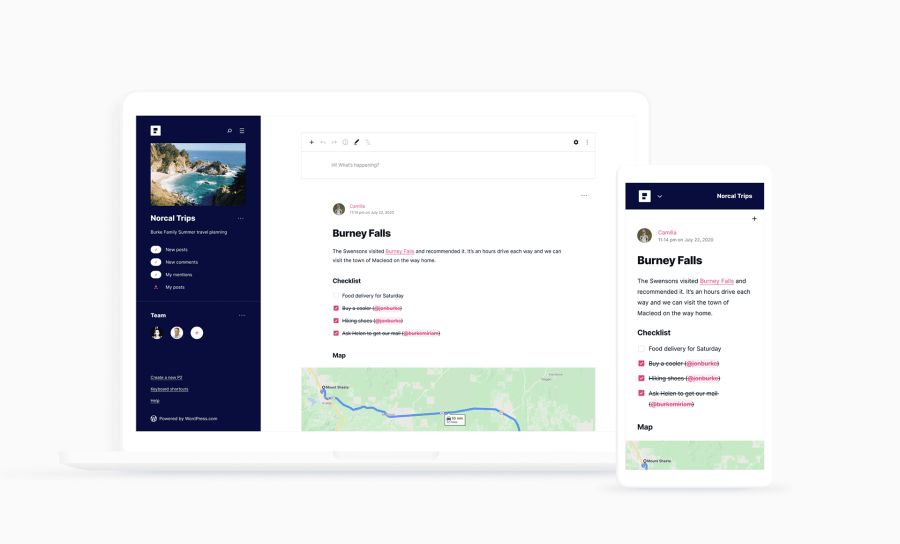
    Today I received this email from WordPress. A new tool to facilitate remote teams collaboration

    “Fewer emails. More progress.” it’s a good argument to test it.

    —

    As communication moves increasingly online, staying organized can be a challenge. The way we work at WordPress.com is unique. We are a global team of more than 1,200 employees across multiple time zones — without a central office.

    Our secret to collaboration and communication for the past 10+ years? A tool called P2.

    P2 gives groups a place to share regular updates and collaborate on any project. Whether you’re looking to connect with a newly remote work team, your homeschooling group, or long-distance friends and family, P2 can help you stay in sync. Keep it private to your team, or open it up to an entire community.

    WordPress landing

    With P2, you can finally stop spending so much time digging through your inbox. Simply open P2 on your computer or in the WordPress mobile app to post updates, check in on conversations, track projects, and more — all without reading or writing a single email. As TechCrunch describes it, “It’s a clean and focused product that would work particularly well in that spot between company-wide emails and announcements getting lost in Slack.”

    P2 is free to use, ad-free, and easy to set up. Create your P2 in just a few clicks. You can then customize your site, publish your first post, and invite the rest of your team.

    Need more tips on getting started? Curious about what you can build? Ask our experts on their own P2.

    —

    More info at https://wordpress.com/p2/

    Share this:

    • Click to share on X (Opens in new window) X
    • Click to share on LinkedIn (Opens in new window) LinkedIn
    • Click to share on Reddit (Opens in new window) Reddit
    • Click to email a link to a friend (Opens in new window) Email
    Like Loading…
  • Mock Axios with Jest

    May 11th, 2021

    Mocking in unit tests serves several purposes:

    1. Control Dependencies: Unit tests should focus on testing specific units of code in isolation. By mocking dependencies, such as external API calls, databases, or services, you can control their behavior and ensure that the unit being tested is the sole focus. This helps in eliminating external factors that could interfere with the test results and isolates the unit under test.
    2. Increase Test Speed: Some dependencies may have slow response times or require specific setups before they can be tested. By mocking these dependencies, you can bypass the need for actual communication with external systems, leading to faster test execution. Mocking allows you to test more scenarios in a shorter amount of time, which is especially beneficial when running a large suite of tests.
    3. Reproduce Specific Scenarios: Mocking provides a way to simulate different scenarios or edge cases that may be difficult or time-consuming to reproduce in real-world situations. By creating mock responses or throwing specific errors, you can assess how the unit being tested handles different scenarios and ensure its robustness.
    4. Reduce Test Flakiness: Dependencies like external APIs or databases can introduce non-deterministic behaviors, such as network issues or data inconsistencies. By mocking these dependencies, you eliminate their unpredictability and make your tests more deterministic and reliable. This reduces the chances of false positives or false negatives in your test results.
    5. Isolate Faults: If a test fails, mocking can help you narrow down the cause to the specific unit being tested or its direct dependencies. By mocking, you can identify whether the issue lies within the unit itself or in its interactions with external components. This simplifies the debugging process and allows for more targeted fixes.

    Overall, mocking during unit tests provides greater control, speed, reproducibility, reliability, and fault isolation, enabling you to thoroughly test individual units of code in an efficient and focused manner.

    Example of mocking with a successful response

          
    import axios from "axios";
    
    jest.mock("axios");
    const mockedAxios = axios as jest.Mocked<typeof axios="">;
    
     const mockGet = jest.fn();
        mockGet.mockImplementation(() => {
          const myResponse = {
            status: 200,
            data: {
              data: [{ id: 1 }, { id: 2 }],
            },
          };
    
          return Promise.resolve(myResponse);
        });
        mockedAxios.get.mockImplementation(mockGet);
          </typeof>
    

    Example of mocking with an error response

          
    import axios from "axios";
    
    jest.mock("axios");
    const mockedAxios = axios as jest.Mocked<typeof axios="">;
    
    const mockGet = jest.fn();
        mockGet.mockImplementation(() => {
          const error = {
            response: {
              status: 404,
            },
          };
          return Promise.reject(error);
        });
        mockedAxios.get.mockImplementation(mockGet);
          </typeof>
    

    Share this:

    • Click to share on X (Opens in new window) X
    • Click to share on LinkedIn (Opens in new window) LinkedIn
    • Click to share on Reddit (Opens in new window) Reddit
    • Click to email a link to a friend (Opens in new window) Email
    Like Loading…
  • Salesforce client for an Apex RESTful web service

    May 11th, 2021

    Many businesses today are leveraging Salesforce to run their day-to-day operations. With its diverse capabilities, it can easily help manage customer relationships, develop applications, and conduct business intelligence analysis. For applications that need access to the Salesforce platform, one of the most popular options is to use the Apex RESTful web service.

    Let’s see an example about how to consume a Salesforce api rest, for instance:

    /services/apexrest/

    The example shows how to authenticate using username and password to get the access token and then how to do a request to this Salesforce web service:

    @RestResource(urlMapping='/hellorest')
    global class HelloRest {
    
        @HttpPost
        global static String echo(String name) {
            String echo = 'Hi, '+name;
            System.debug('Echo: '+echo);
            return echo;
        }
    }

    See the code from Github https://github.com/andrescanavesi/salesforce-apex-rest

    Share this:

    • Click to share on X (Opens in new window) X
    • Click to share on LinkedIn (Opens in new window) LinkedIn
    • Click to share on Reddit (Opens in new window) Reddit
    • Click to email a link to a friend (Opens in new window) Email
    Like Loading…
  • How to convert sforce.apex.execute to Lightning

    May 11th, 2021

    Let’s see how to convert a Salesforce JavaScript button that uses sforce.apex.execute in to Lightning Experience.

    The good news is you will reuse this code and the approach for all your similar buttons

    Imagine you have this JavaScript button in your Salesforce instance. OK, probably your button is larger and more complex but the idea is the same

          
    {!requireScript("/soap/ajax/20.0/connection.js")} 
    {!requireScript("/soap/ajax/20.0/apex.js")}
     
    sforce.apex.execute("JSMMyExecuteClass", "myExecuteMethod", {param1:"Im param1",param2:"Im param2"}); 
    window.location = 'https://google.com';


    In the example above we want to invoke the method myExecuteMethod that belongs to the Apex class JSMMyExecuteClass and you will pass these parameters {param1:”Im param1″,param2:”Im param2″}

    After that, it redirects to google.com

    There’s not a direct solution (aka point and click) so we have to work a little bit

    Create a Lightning Component

    JSMMyButton.cmp

          
    <aura:component implements="force:lightningQuickAction" controller="JSMMyExecuteClass" >
     
      <aura:handler name="init" value="{!this}" action="{!c.doInit}"/>
     
    </aura:component>


    Create a controller

    The controller part of my component is called JSMMyButton.js

          
    ({
      doInit : function(component, event, helper) {
        var action = component.get("c.myExecuteMethodAura");
        action.setParams({
          "param1": 'Im param1',
          "param2": 'Im param2'
        });
        action.setCallback(this, function(response) {
        var state = response.getState();
     
        if(state == "SUCCESS" && component.isValid()){
          console.log("success") ;
          var result = response.getReturnValue();
          console.log(result);
     
          var urlRedirect = "https://www.google.com/search?q="+result;
          var urlEvent = $A.get("e.force:navigateToURL");
          urlEvent.setParams({
            "url": urlRedirect
          });
          urlEvent.fire();
        }else{
          console.error("fail:" + response.getError()[0].message); 
        }
      });
      $A.enqueueAction(action);
      }
    })


    Create Apex class

    In JSMMyExecuteClass we need to create an equivalent method to call from our js

          
    public class JSMMyExecuteClass {
     
      public String myExecuteMethod(String param1, String param2){
        return 'ok '+param1+' - '+param2;
      }
     
      @AuraEnabled
      public static String myExecuteMethodAura(String param1, String param2){
        return new JSMMyExecuteClass().myExecuteMethod(param1, param2);
      }
    }


    Create a Quick Action

    Create a quick action that points to our component

    Add the quick action to the layout(s) you want

    That’s all. You can use this approach again for others button you have that require some code.

    Video

    Maybe this video is interesting for you: Journey to Lightning Experience: Convert Your JavaScript Buttons

    Photo by Artem Sapegin on Unsplash

    Share this:

    • Click to share on X (Opens in new window) X
    • Click to share on LinkedIn (Opens in new window) LinkedIn
    • Click to share on Reddit (Opens in new window) Reddit
    • Click to email a link to a friend (Opens in new window) Email
    Like Loading…
  • Salesforce – Mock callouts in Apex

    May 11th, 2021

    To mock callouts in Apex, you can create a class that implements the HttpCalloutMock interface. This allows you to define the desired response for an HTTP request made during testing. Here’s an example of how you can create a mock class for callouts:

       private class RestMock implements HttpCalloutMock {
    
            public HTTPResponse respond(HTTPRequest req) {
                HTTPResponse res = new HTTPResponse();
                res.setHeader('Content-Type', 'text/json');
                res.setBody('{}');
                res.setStatusCode(200);
                return res;
            }
        }
      

    In your test method, you can use the Test.setMock method to associate your mock class with the HTTP callout. Here’s an example of how to use the mock in a test:

    @isTest static void myTest() {
            Test.setMock(HttpCalloutMock.class, new RestMock());
            
            // Some stuff...
    
            Test.startTest();
            // Test-related stuff...
            Test.stopTest();
            
        }

    By using this approach, you can simulate different scenarios and responses to ensure your code handles callouts correctly during testing.

    Share this:

    • Click to share on X (Opens in new window) X
    • Click to share on LinkedIn (Opens in new window) LinkedIn
    • Click to share on Reddit (Opens in new window) Reddit
    • Click to email a link to a friend (Opens in new window) Email
    Like Loading…
  • Download Salesforce metadata using SFDX

    May 11th, 2021

          
    cd some/directory
    sfdx auth:web:login -a my@username.dev --instanceurl=https://my-sfdc-instance.my.salesforce.com
    sfdx force:project:create -n myProject --manifest
    cd myProject
    sfdx config:set defaultusername=my@username.dev
    # Modify the package xml to retieve whatever we want
    sfdx force:source:retrieve -x manifest/package.xml
    # or retrieve this way
    sfdx force:source:retrieve -m "ApexClass:MyApexClass"


    Photo by Cookie the Pom on Unsplash

    Share this:

    • Click to share on X (Opens in new window) X
    • Click to share on LinkedIn (Opens in new window) LinkedIn
    • Click to share on Reddit (Opens in new window) Reddit
    • Click to email a link to a friend (Opens in new window) Email
    Like Loading…
  • Detect record changes in a Lightning Component

    May 11th, 2021

    Let say you have a Lightning Component placed on the Account record page and you want to listen to changes that occur outside our component. For example, in your component, you display some Account data and that must be refreshed once the user clicks on the standard save button.

    We are going to write an example to show how we can accomplish this.

    So we need to:

    • Create a Lightning Component
    • Create a Lightning Component controller
    • Create an Apex class to simuate some backend work

    Example of listening to changes outside our component

    Let’s create an example to see how it works.

    For sake of simplicity, this component just displays the name of the Account that we get from an Apex controller

    Now we want our Lightning Component to be updated once the Account’s name was changed through the standard layout.

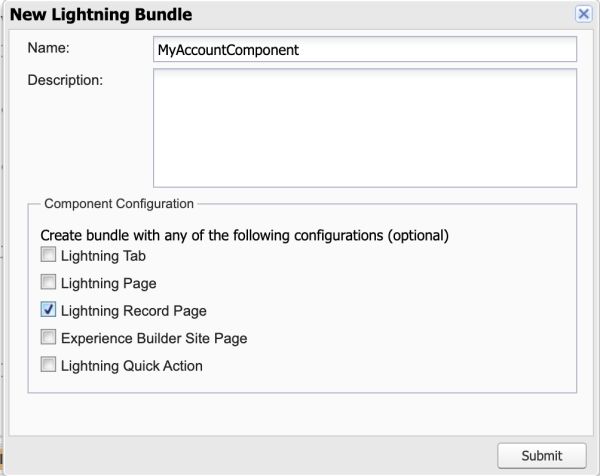
    Create a component
    image

    It’s important to check the “Lightning Record Page” to receive the record id by URL parameter and also to be able to place this component into the Account record page.


    <aura:component controller="MyAccountComponentController" implements="flexipage:availableForRecordHome,force:hasRecordId" access="global" >
        <aura:handler name="init" value="{!this}" action="{!c.doInit}"/>
        <aura:attribute name="recordId" type="String" />
        <aura:attribute name="accountName" type="String" />
        
        <!-- To listen to when the Account was changed and update our component -->
        <force:recordData aura:id="forceRecord"
                          recordId="{!v.recordId}" 
                          fields="Name"
                          recordUpdated="{!c.doInit}" />
        
        <article class="slds-card">
            <div class="slds-card__body slds-card__body_inner">
                <span class="slds-text-body_regular">{!v.accountName}</span>
            </div>
        </article>
    </aura:component>


    Create the UI controller


    ({
        doInit : function(component, event, helper) {
            const recordId = component.get('v.recordId');
            
            var changeType = event.getParams().changeType;
            console.info('event change type '+changeType);
            
            var action = component.get("c.getAccount");
            action.setParams({
                recordId : recordId
            });
            action.setCallback(this, function(response){
                var state = response.getState();
                if(state === "SUCCESS"){ 
                    var account = response.getReturnValue();
                    component.set("v.accountName", account.Name);  
                } else if(state === "ERROR"){
                    console.log('Error: ' + JSON.stringify(response.getError()));
                } else {
                    console.log('Unknown problem, state: '+ state + ', error: ' + JSON.stringify(response.error));
                }
            });
            $A.enqueueAction(action);
        }
    })


    In our example, we are not asking for the event type but we could this way tho make different actions

          
    if (changeType === "ERROR") { /* handle error; do this first! */ }
        else if (changeType === "LOADED") { /* handle record load */ }
        else if (changeType === "REMOVED") { /* handle record removal */ }
        else if (changeType === "CHANGED") { /* handle record change */ }


    Create the Apex controller

          
    public class MyAccountComponentController {
        
        @AuraEnabled
        public static Account getAccount(String recordId){
            try{
                return [SELECT Name FROM Account WHERE Id = :recordId];
            }catch(Exception e ){
                throw new AuraHandledException('Error getting Account '+e.getMessage() + ' record id: '+recordId);
            }
        }
    }


    Add the component

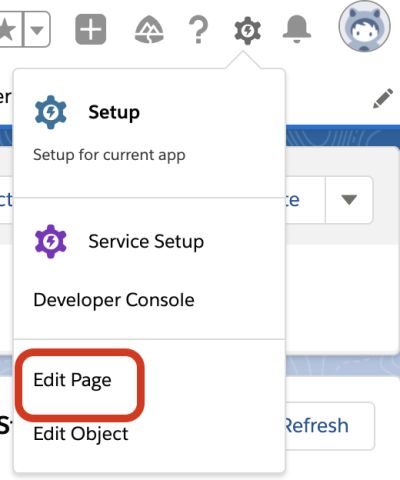
    After we create our Lightning Component, let’s add it to our Account’s record page
    image

    Drag and drop our Component. In this case, I’m positioning at the top of our side bar
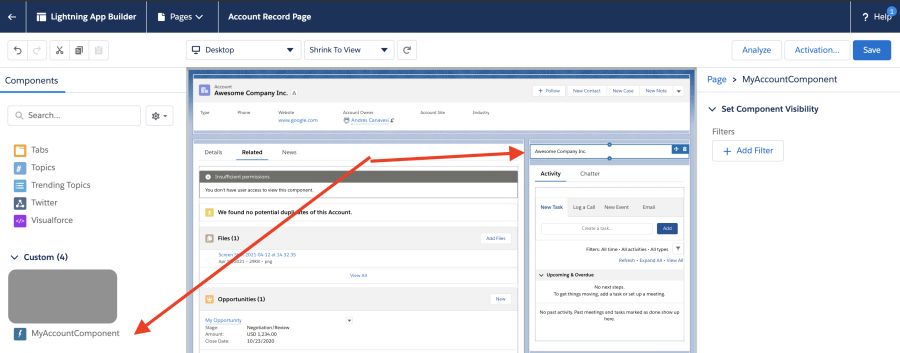
    image

    Save the page and activate it if it is necessary.

    Test it

    Our last step is to change the name of any account and see how our component is updated.

    Have in mind we are making an API call to our Apex controller. That change doesn’t come from the frontend, we have to go to our Salesforce backend and run the query to get the new name.

    Reload record

    In case we are in edit mode, we may call this method to reload our component based on new changes that come from outside

          
    component.find("forceRecord").reloadRecord();


    Resources


    • Lightning Aura Components Developer Guide
      – Record Changes

    • What Is the Lightning Component Framework?

    • Salesforce Lightning Design System

    Photo by Paul Skorupskas on Unsplash

    Share this:

    • Click to share on X (Opens in new window) X
    • Click to share on LinkedIn (Opens in new window) LinkedIn
    • Click to share on Reddit (Opens in new window) Reddit
    • Click to email a link to a friend (Opens in new window) Email
    Like Loading…
  • How to download a Salesforce file from Node.js

    May 11th, 2021

    index.js

          
    const jsforce = require('jsforce');
    const https = require('https');
    const fs = require('fs');
    const conn = new jsforce.Connection();
    const userName = '*******';
    const password = '*******';
    const securityToken = '*********';
    const fileId = '0684W00000BzWohQAF';
    const fullFileName = '/Users/andrescanavesi/sf.png';
    
    conn.login(userName, password+securityToken, function(err, res) {
        if (err) { return console.error(err); }
    
        console.log(conn.accessToken);
        console.log(conn.instanceUrl);
        // logged in user property
        console.log("User ID: " + res.id);
        console.log("Org ID: " + res.organizationId);
    
        downloadFile(conn);
    
    });
    
    function downloadFile(conn) {
    
        const options = {
            hostname: 'myinstance-dev-ed.my.salesforce.com',
            port: 443,
            path: '/services/data/v51.0/sobjects/ContentVersion/'+fileId+'/VersionData',
            method: 'GET',
            headers: {
                'Content-Type': 'application/octet-stream',
                'Authorization': 'OAuth '+conn.accessToken
            }
        }
    
        https.get(options, (resp) => {
            let data = '';
    
            // A chunk of data has been received.
            resp.on('data', (chunk) => {
                console.log('chunk');
                data += chunk;
    
                fs.appendFile(fullFileName, chunk, function (err) {
                    if (err) throw err;
                    console.log('chunk updated');
                });
    
            });
    
            // The whole response has been received. Print out the result.
            resp.on('end', () => {
                console.log('data downloaded');
            });
    
        }).on("error", (err) => {
            console.log("Error: " + err.message);
        });
    }


    package.json

    Share this:

    • Click to share on X (Opens in new window) X
    • Click to share on LinkedIn (Opens in new window) LinkedIn
    • Click to share on Reddit (Opens in new window) Reddit
    • Click to email a link to a friend (Opens in new window) Email
    Like Loading…
  • Migrate $User, $Profile, $Label and $Api to Lightning Components

    May 11th, 2021

    We can’t use $User, $Profile, $Label, and $Api in Lightning. We need to implement a server-side solution.

    Migrating your code to Lightning Components can be a daunting task. Fortunately, with a few simple steps, you can migrate your $User, $Profile, $Label and $Api components to Lightning Components.

    The original JS button

    alert($User.Email)

    Create a Lightning component

    Create a Lightning component: JSMUserInfo.cmp

    <aura:component implements="force:lightningQuickAction" controller="JSMUserInfoService" >
      <aura:attribute name="user" type="JSMUserInfo" />
      <aura:handler name="init" value="{!this}" action="{!c.doInit}"/>
     
      Id: {!v.user.Id}
      <br/>
      First name: {!v.user.FirstName}
      <br/>
      Last name: {!v.user.LastName}
      <br/>
      Email: {!v.user.Email}
     
    </aura:component>


    Create a js controller

    JSMUserInfo.js

    
    ({
      doInit : function(component, event, helper) {
        var action = component.get("c.getUserInfo");
        action.setCallback(this, function(response) {
          var state = response.getState();
          if(state == "SUCCESS" && component.isValid()){
            console.log("success") ;
            var result = response.getReturnValue();
            console.log(result);
            console.log(result.FirstName);
            component.set("v.user", result);
     
       }else{
         console.error("fail:" + response.getError()[0].message); 
        }
       });
      $A.enqueueAction(action);
    }
    })
    

    Create an Apex class

    A wrapper class containing the user info we need

    
    public class JSMUserInfo{
      @AuraEnabled
      public String Id {get;set;}
      @AuraEnabled
      public String FirstName {get;set;}
      @AuraEnabled
      public String LastName {get;set;}
      @AuraEnabled
      public String Email {get;set;}
    }
    

    Create a service Apex class

    The server-side controller that exposes the User’s info

    
    public class JSMUserInfoService {
     
    @AuraEnabled
    public static JSMUserInfo getUserInfo(){
      try{
        JSMUserInfo info = new JSMUserInfo();
        info.Id = Userinfo.getUserId();
        info.FirstName = Userinfo.getFirstName();
        info.LastName = Userinfo.getLastName();
        info.Email = Userinfo.getUserEmail();
        return info;
      }catch(Exception e){
         throw new AuraHandledException(e.getMessage()); 
      }
     
      } 
    }


    We can use a similar approach for $Api or any other global variable

    $Profile

    
    @AuraEnabled
    public static Profile getProfileInfo(){
      try{
        String profileId = UserInfo.getProfileId();
        Profile profile = [SELECT Id, Name FROM Profile WHERE Id =:profileId];
        return profile;
      }catch(Exception e){
        throw new AuraHandledException(e.getMessage()); 
      }
    }
    

    $Site

    
    @AuraEnabled
    public static JSMSiteInfo getSiteInfo(){
      try{
        JSMSiteInfo info = new JSMSiteInfo();
        info.Prefix = Site.getPathPrefix();
        info.Domain = Site.getDomain();
        info.Name = Site.getName();
        return info;
      }catch(Exception e){
        throw new AuraHandledException(e.getMessage()); 
      }
    }
    

    Share this:

    • Click to share on X (Opens in new window) X
    • Click to share on LinkedIn (Opens in new window) LinkedIn
    • Click to share on Reddit (Opens in new window) Reddit
    • Click to email a link to a friend (Opens in new window) Email
    Like Loading…
  • How to configure HTTPS in Node.js

    May 11th, 2021

    Sometimes we need to configure a secure environment locally to test how our application reacts to HTTPS.

    To configure HTTPS in Node.js is pretty easy, only a couple of steps and you will be able to use https://localhost:3000

    I will assume you are using Linux or Mac

    The first step is to create a folder to keep our generated files safe. This folder shouldn’t belong to our project.

          
    $ mkdir some/folder
    $ cd some/folder


    From here I will assume you are at the folder you created

    Create the private key and the certificate

          
    $ openssl req -x509 -newkey rsa:2048 -keyout keytmp.pem -out cert.pem -days 365
    Generating a 2048 bit RSA private key
    ...........+++
    ............................+++
    writing new private key to 'keytmp.pem'
    Enter PEM pass phrase:
    Verifying - Enter PEM pass phrase:
    -----
    You are about to be asked to enter information that will be incorporated
    into your certificate request.
    What you are about to enter is what is called a Distinguished Name or a DN.
    There are quite a few fields but you can leave some blank
    For some fields there will be a default value,
    If you enter '.', the field will be left blank.
    -----


    It will ask you some data such as country, city, organization etc. You can introduce whatever you want because you will use this stuff locally. If you are configuring a production environment, of course you will have to write real data.

    IMPORTANT: Remember the passphrase you used because you will need in the following step

    List the current directory to see the generated files

          
    $ ls
    cert.pem    keytmp.pem


    Get decrypted keys

          
    $ openssl rsa -in keytmp.pem -out key.pem


    List files

          
    $ ls
    cert.pem    key.pem     keytmp.pem


    Now we can use our files in our app

    I created two environment configs to keep the keys in a different directory rather than in my project: KEY_PEM and CERT_PEM

          
    const fs = require('fs');
    const key = fs.readFileSync(process.env.KEY_PEM); //absolute path to the key.pem file
    const cert = fs.readFileSync(process.env.CERT_PEM); //absolute path to the cert.pem file


    Configure Express to use the key and certificate

          
    const express = require('express');
    const https = require('https');
    const app = express();
    const server = https.createServer({key: key, cert: cert }, app);


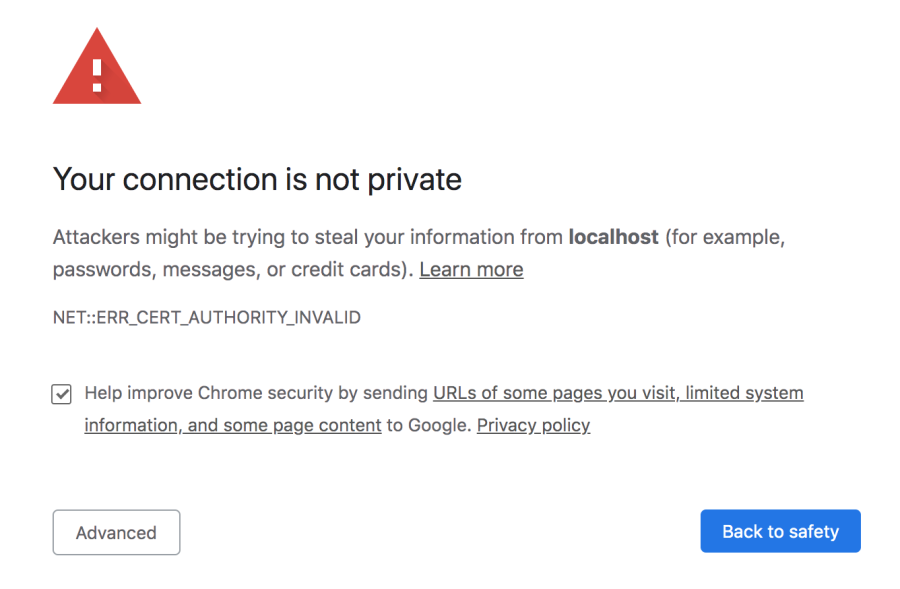
    After running your server, 99% you will get a big warning from your browser:

    image

    Don’t worry, you can click on Advanced and then click on Proceed to localhost (unsafe)

    That’s because the browser does not recognize your certificate as trusted. Remember we created it and it comes from our machine and not from an established certificate authority

    Guide based on this

    Photo by Florian Klauer on Unsplash

    Share this:

    • Click to share on X (Opens in new window) X
    • Click to share on LinkedIn (Opens in new window) LinkedIn
    • Click to share on Reddit (Opens in new window) Reddit
    • Click to email a link to a friend (Opens in new window) Email
    Like Loading…
←Previous Page
1 … 17 18 19 20 21 … 25
Next Page→

  • LinkedIn
  • GitHub
  • WordPress

Privacy PolicyTerms of Use

Website Powered by WordPress.com.

  • Subscribe Subscribed
    • javaniceday.com
    • Already have a WordPress.com account? Log in now.
    • javaniceday.com
    • Subscribe Subscribed
    • Sign up
    • Log in
    • Report this content
    • View site in Reader
    • Manage subscriptions
    • Collapse this bar
%d