javaniceday.com

  • Home
  • AboutAbout me
  • Subscribe
  • SalesforceSalesforce related content
  • Node JSNodejs related content
  • JavaJava related content
  • Electric Vehicles
  • Autos Elรฉctricos
  • Estaciones de carga UTE
  • Mapa cargadores autos elรฉctricos en Uruguay
  • Load stylesheets in background to increase page speed

    August 16th, 2020

    With only two simple steps your pages will load faster, and the most important: using only native JavaScript

    The trick will be to use a default tag in rel attribute and modify it once the page loads

    Step 1

    Include your stylesheets this way

          
    <link id="stylesCss" as="style" rel="preload" href='/stylesheets/style.css' />


    Step 2

    After the page loads call this piece of code:

          
    document.getElementById('stylesCss').rel='stylesheet'


    So the whole code will be

          
    <script type="text/javascript">
       document.addEventListener("DOMContentLoaded", function(event) { 
          // load css styles after the page loaded
          document.getElementById('stylesCss').rel='stylesheet'
       });
    </script>


    After the page loads the tag will be this:

          
    <link id="stylesCss" as="style" rel="stylesheet" href='/stylesheets/style.css' />


    And that’s it. The browser will listen to this action and will load the stylesheets properly. Now your page will load a bit more faster

    Of course, you can do this for any other style you have

    Photo by Alexander Redl on Unsplash

    Share this:

    • Click to share on X (Opens in new window) X
    • Click to share on LinkedIn (Opens in new window) LinkedIn
    • Click to share on Reddit (Opens in new window) Reddit
    • Click to email a link to a friend (Opens in new window) Email
    Like Loading…
  • How to configure http auth basic in Node js and Express

    August 4th, 2020

    Letโ€™s build a small site in Node.js using Express that will have one protected page

    img

    We are going to use express generator to generate some scaffolding. If you didnโ€™t install it just type this command to install it globally but if you already know all this stuff you might skip this step

    
    npm install express-generator -g


    Generate a site with default options:

    
    express auth-basic


    The output of that command will show you the generated files:

    
    create : auth-basic/
    create : auth-basic/public/
    create : auth-basic/public/javascripts/
    create : auth-basic/public/images/
    create : auth-basic/public/stylesheets/
    create : auth-basic/public/stylesheets/style.css
    create : auth-basic/routes/
    create : auth-basic/routes/index.js
    create : auth-basic/routes/users.js
    create : auth-basic/views/
    create : auth-basic/views/error.jade
    create : auth-basic/views/index.jade
    create : auth-basic/views/layout.jade
    create : auth-basic/app.js
    create : auth-basic/package.json
    create : auth-basic/bin/
    create : auth-basic/bin/www


    Go into the folder, build the project with install and run it.

    
    cd auth-basic
    npm install
    npm start


    Open a browser at: http://localhost:3000 to validate everything goes well.

    You should see a web page like this:

    img

    The magic

    Now letโ€™s install the module express-basic-auth that will do the magic.

    
    npm install --save express-basic-auth


    Modify the module /routes/users.js


    var express = require('express');
    var router = express.Router();
     
    const basicAuth = require("express-basic-auth");
     
    const authOptions = {
      challenge: true, //it will cause most browsers to show a popup to enter credentials on unauthorized responses,
      users: {"admin": "admin"},//typically you will get  this info from environment variables or any other source
      authorizeAsync: false,
      unauthorizedResponse: getUnauthorizedResponse,
    };
     
    /**
     *
     * @param req
     * @returns {string} the text to be displayed when users hit on cancel prompt button
     */
    function getUnauthorizedResponse(req) {
      return "Unauthorized";
    }
     
    /**
     *  GET users listing.
     */
    router.get('/', basicAuth(authOptions), function(req, res, next) {
      res.send('Users listing area');
    });
     
    module.exports = router;


    Stop and run again

    Navigate to http://localhost:3000/users

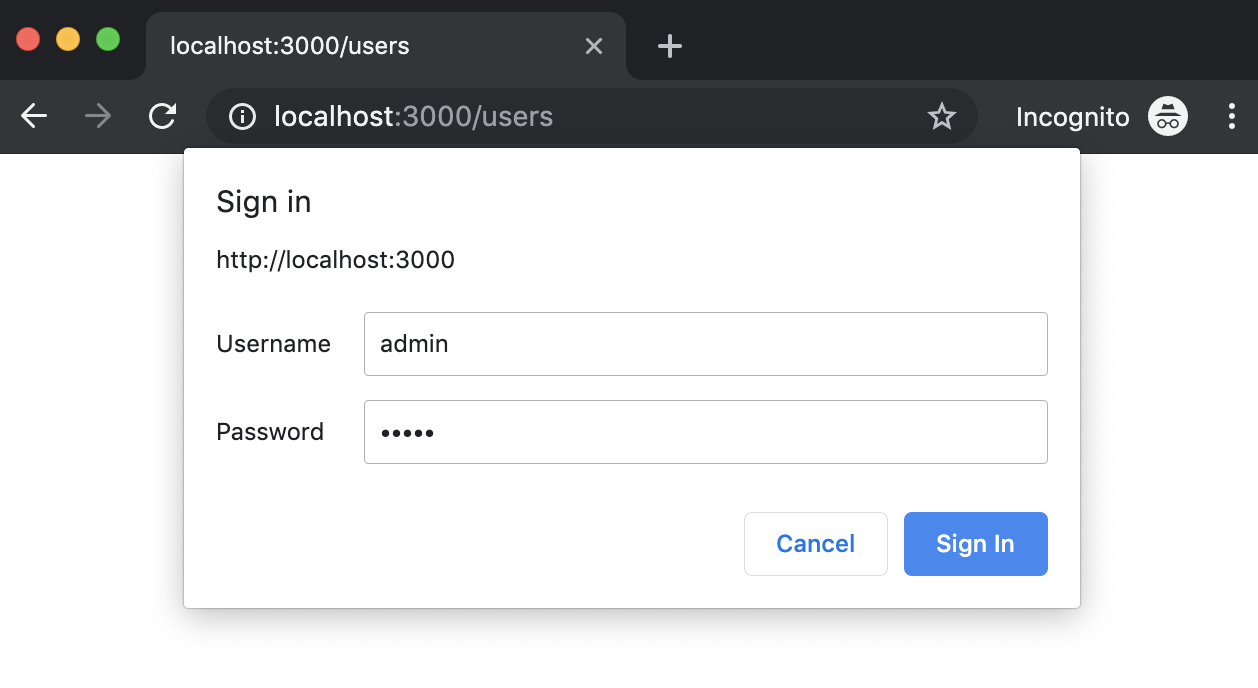
    You should see a prompt that asks you for credentials. Try click on cancel button and then refresh the page to introduce the credentials you wrote in the code.

    Photo by Jon Moore on Unsplash

    Share this:

    • Click to share on X (Opens in new window) X
    • Click to share on LinkedIn (Opens in new window) LinkedIn
    • Click to share on Reddit (Opens in new window) Reddit
    • Click to email a link to a friend (Opens in new window) Email
    Like Loading…
  • Post 6 โ€“ Building Your First Lightning Web Component for Salesforce Series

    January 18th, 2020

    If you are already a Salesforce developer then you know that server-side Apex Unit tests are required, but client-side JavaScript tests are not and if you are like most developers, you probably think that creating tests should be optional, kind of like documenting, right?

    https://saramorgan.net/2020/01/02/post-6-building-your-first-lightning-web-component-for-salesforce-series/

    Sara Morgan's avatar

    This will be the sixth of a series of posts I will be doing over the next few weeks. They will all lead up to the introduction of my new course in December 2019 titled, โ€œBuilding Your First Lightning Web Component for Salesforceโ€ from Pluralsight. These posts will contain final code snippets of the code used in each course module, but will not include all the tips and best practices about using Visual Studio Code and SFDX, along with the way I personally approach teaching in my video courses.

    Handling Testing and Wrapping Up

    If you are already a Salesforce developer then you know that server-side Apex Unit tests are required, but client-side JavaScript tests are not and if you are like most developers, you probably think that creating tests should be optional, kind of like documenting, right?

    You might not believe this, but writing tests (even for non-required JavaScript)โ€ฆ

    View original post 965 more words

    Share this:

    • Click to share on X (Opens in new window) X
    • Click to share on LinkedIn (Opens in new window) LinkedIn
    • Click to share on Reddit (Opens in new window) Reddit
    • Click to email a link to a friend (Opens in new window) Email
    Like Loading…
  • sforce.apex.execute in Lightning

    January 18th, 2020

    You are here because your JavaScript buttons that worked in Classic doesn’t work in Lightning.

    Let see how you can make it work

    Straight to the point

    This is your JavaScript button that works in Classic

    {!requireScript("/soap/ajax/20.0/connection.js")} 
    {!requireScript("/soap/ajax/20.0/apex.js")}
     
    sforce.apex.execute("JSMMyExecuteClass", "myExecuteMethod", {param1:"Im param1",param2:"Im param2"}); 
    window.location = 'https://google.com';
    

    And this is your button working in Lightning

    JSMMyButton.cmp

    <aura:component implements="force:lightningQuickAction" controller="JSMMyExecuteClass" >
      <aura:handler name="init" value="{!this}" action="{!c.doInit}"/>
    </aura:component>
    

    JSMMyButton.js

    ({
      doInit : function(component, event, helper) {
        var action = component.get("c.myExecuteMethodAura");
        action.setParams({
          "param1": 'Im param1',
          "param2": 'Im param2'
        });
        action.setCallback(this, function(response) {
        var state = response.getState();
     
        if(state == "SUCCESS" && component.isValid()){
          console.log("success") ;
          var result = response.getReturnValue();
          console.log(result);
     
          var urlRedirect = "https://www.google.com/search?q="+result;
          var urlEvent = $A.get("e.force:navigateToURL");
          urlEvent.setParams({
            "url": urlRedirect
          });
          urlEvent.fire();
        }else{
          console.error("fail:" + response.getError()[0].message); 
        }
      });
      $A.enqueueAction(action);
      }
    })
    

    JSMMyExecuteClass (Apex class)

    public class JSMMyExecuteClass {
     
      public String myExecuteMethod(String param1, String param2){
        return 'ok '+param1+' - '+param2;
      }
     
      @AuraEnabled
      public static String myExecuteMethodAura(String param1, String param2){
        return new JSMMyExecuteClass().myExecuteMethod(param1, param2);
      }
    }
    

    The last step is to create a quick action that points to our component and then add it as many layouts you want.

    Subscribe to this blog

    Photo by lee junda on Unsplash

    Share this:

    • Click to share on X (Opens in new window) X
    • Click to share on LinkedIn (Opens in new window) LinkedIn
    • Click to share on Reddit (Opens in new window) Reddit
    • Click to email a link to a friend (Opens in new window) Email
    Like Loading…
  • How to build a sitemap

    January 18th, 2020

    A sitemap is very important if you want to search engines discover and index your site properly. Your site is a jungle of HTML, CSS and JavaScript files so the more you make it easier for search engines, the better. A sitemap.xml file is one of the most and easiests way to implement.

    No matter the language you are using in your site, this is the right way to create a sitemap.

    Tweet

    A sitemap is a file that search engines like Google Bot can understand to index your site. This file contains all the links to your pages in a special (but not so complicated) format.

    It contains also an important information: how often you update that specific page. This way the bot will visit periodically to index the new changes.

    The Sitemap protocol format consists of XML tags. All data values in a Sitemap must be entity-escaped. The file itself must be UTF-8 encoded.

    https://www.sitemaps.org/protocol.html

    Let see an example of a sitemap.xml

    <?xml version="1.0" encoding="UTF-8"?>
    <urlset xmlns="http://www.sitemaps.org/schemas/sitemap/0.9">
       <url>
          <loc>http://www.example.com/</loc>
          <lastmod>2020-01-01</lastmod>
          <changefreq>monthly</changefreq>
          <priority>0.8</priority>
       </url>
    </urlset> 
    

    The above sitemap only contains one page: the home page. Maybe that’s ok because your site only contains a landing page but let see how do we build a sitemap with more pages.

    If you have more pages to index you will write a new block:

    <url>
       <loc>http://www.example.com/catalog?item=12&desc=vacation_hawaii</loc>
       <changefreq>weekly</changefreq>
    </url>
    

    Typically you sitemap XML file will be hosted at the root of your domain: http://www.mysite.com/sitemap.xml.

    For instance, you can see the site map of javaniceday.com here: https://javaniceday.com/sitemap.xml

    sitemap.xml sample

    If you are using WordPress or any other CMS, probably you will have several plugins to generate your sitemap.xml with one click and (automatically) every time you create new content. Otherwise you will have to create an algorithm by your own.

    See an implementation in Node.js here:
    https://javaniceday.com/2019/11/19/how-to-build-a-sitemap-xml-in-node-js-using-express/

    Maybe you also are interested in

    Photo by Jilbert Ebrahimi on Unsplash

    Share this:

    • Click to share on X (Opens in new window) X
    • Click to share on LinkedIn (Opens in new window) LinkedIn
    • Click to share on Reddit (Opens in new window) Reddit
    • Click to email a link to a friend (Opens in new window) Email
    Like Loading…
  • Google to kill third-party Chrome cookies in two years โ€” Infosec News Ireland

    January 16th, 2020

    This just in: Google doesnโ€™t want to block third-party cookies in Chrome right now. It has promised to make them obsolete later, though. Wait โ€“ what? The search engine giant gave us the latest update this week in the journey towards what it says will be a more private, equitable web. It announced this initiative,ย [โ€ฆ]

    Google to kill third-party Chrome cookies in two years โ€” Infosec News Ireland

    Share this:

    • Click to share on X (Opens in new window) X
    • Click to share on LinkedIn (Opens in new window) LinkedIn
    • Click to share on Reddit (Opens in new window) Reddit
    • Click to email a link to a friend (Opens in new window) Email
    Like Loading…
  • Lazy load images with javascript

    January 16th, 2020

    Why should you load your images in a lazy way? Among others reasons:

    • Increase page speed:
      • Better page rank
      • More visitors
      • Reduce bounce rate
      • Increase pages / session rate
    • Improve user experience
    • Reduce infrastructure costs

    In a nutshell, this is the process:

    • Modify all your <img /> tags by changing src by data-src or something else
    • Add a specific class to every image we want to load lazily.
    • Add a listener to know when the image is being displayed
      • Once the image is displayed, the listener will call our code to modify our image tag
      • The code will get the url from data-src and will update the src property.
      • The image will be loaded by the browser
    • Call the listener after the page loads

    Straight to the point

    I will use a third-party library called lozad. It’s pretty small and it loads super fast so it won’t have a big impact in your page loading.

    Highly performant, light and configurable lazy loader in pure JS with no dependencies for images, iframes and more, using IntersectionObserver API

    lozad

    Include the script via CDN in your head tag of your page

    <script type="text/javascript" src="https://cdn.jsdelivr.net/npm/lozad/dist/lozad.min.js"></script>
    

    Unfortunately, you cannot use async property here since the script must be loaded before the page loads

    Add this code in your page

    <script type = "text/javascript"> 
      // I assume you are using jQuery. Otherwise you can use the classic way
      $(document).ready(() => {
          // to load images in a lazy way
          // lazy loads elements with default selector as '.lozad'
          const observer = lozad();
          observer.observe();
          console.info('lozad observing...');
      }); 
    </script>
    

    Of course you can move this code to a different script file (let say common.js) instead of your page. You only have to make sure that your file common.js is downloaded and ready to use before lozad call:

    const observer = lozad();
    observer.observe();
    

    The last step is to modify all your images you want to load lazily.

    Before:

    <img src="image.jpg" class="yourClass" alt="your image description" />
    

    After:

    <img data-src="image.jpg" class="lozad yourClass" alt="your image description"/>
    

    You can see more options here https://apoorv.pro/lozad.js/

    It’s important you add alt="your image description" because that text will be displayed while the image is loading. This will give a better user experience to your visitors.

    Demo

    Resources

    • https://github.com/ApoorvSaxena/lozad.js
    • https://www.sitepoint.com/five-techniques-lazy-load-images-website-performance/

    Photo by elizabeth lies on Unsplash

    Share this:

    • Click to share on X (Opens in new window) X
    • Click to share on LinkedIn (Opens in new window) LinkedIn
    • Click to share on Reddit (Opens in new window) Reddit
    • Click to email a link to a friend (Opens in new window) Email
    Like Loading…
  • Redirect all requests from HTTP to HTTPS un Node.js and Express

    January 12th, 2020

    The first step will be to create a method to guess if the HTTP request comes from HTTP or HTTPS (secure or not secure). In some context like AWS or Heroku you will have to ask by the header x-forwarded-proto instead of req.secure.

    Have in mind that req.secure will return always false if there is a load balancer that redirects internally through HTTP. So let’s contemplate both scenarios

    /**
     * @param req express http request
     * @returns true if the http request is secure (comes form https)
     */
    function isSecure(req) {
      if (req.headers['x-forwarded-proto']) {
        return req.headers['x-forwarded-proto'] === 'https';
      }
      return req.secure;
    };


    And then add this code in you app.js. Have in mind we are not redirecting to HTTPS if we are in our development or testing environment but you can skip them if you want and redirect always.

    // redirect any page form http to https
    app.use((req, res, next) => {
      if (process.env.NODE_ENV !== 'development' && process.env.NODE_ENV !== 'test' && !isSecure(req)) {
        res.redirect(301, `https://${req.headers.host}${req.url}`);
      } else {
        next();
      }
    });
    

    Now all requests will be redirected to HTTPS if you access through HTTP regardless the full URL

    Photo byย Jamie Streetย onย Unsplash

    Share this:

    • Click to share on X (Opens in new window) X
    • Click to share on LinkedIn (Opens in new window) LinkedIn
    • Click to share on Reddit (Opens in new window) Reddit
    • Click to email a link to a friend (Opens in new window) Email
    Like Loading…
  • How to configure HTTPS in Node.js

    January 12th, 2020

    Sometimes we need to configure a secure environment locally to test how our application reacts on HTTPS.

    To configure HTTPS in Node.js is pretty easy, only a couple of steps and you will be able to use https://localhost:3000

    I will assume you are using Linux or Mac

    The first step is to create a folder to keep our generated files safe. This folder shouldn’t belong to our project.

    $ mkdir some/folder
    $ cd some/folder
    

    From here I will assume you are at the folder you created

    Create the private key and the certificate

    $ openssl req -x509 -newkey rsa:2048 -keyout keytmp.pem -out cert.pem -days 365
    
    Generating a 2048 bit RSA private key
    ...........+++
    ............................+++
    writing new private key to 'keytmp.pem'
    Enter PEM pass phrase:
    Verifying - Enter PEM pass phrase:
    -----
    You are about to be asked to enter information that will be incorporated
    into your certificate request.
    What you are about to enter is what is called a Distinguished Name or a DN.
    There are quite a few fields but you can leave some blank
    For some fields there will be a default value,
    If you enter '.', the field will be left blank.
    -----


    It will ask you some data such as country, city, organization etc. You can introduce whatever you want because you will use this stuff locally. If you are configuring a production environment, of course you will have to write real data.

    IMPORTANT: Remember the passphrase you used because you will need in the following step

    List the current directory to see the generated files

    $ ls
    cert.pem	keytmp.pem
    

    Get decrypted keys

    $ openssl rsa -in keytmp.pem -out key.pem
    

    List files

    $ ls
    cert.pem	key.pem		keytmp.pem
    

    Now we can use our files in our app

    I created two environment configs to keep the keys in a different directory rather than in my project: KEY_PEM and CERT_PEM

    const fs = require('fs');
    const key = fs.readFileSync(process.env.KEY_PEM); //absolute path to the key.pem file
    const cert = fs.readFileSync(process.env.CERT_PEM); //absolute path to the cert.pem file
    

    Configure Express to use the key and certificate

    const express = require('express');
    const https = require('https');
    const app = express();
    const server = https.createServer({key: key, cert: cert }, app);
    

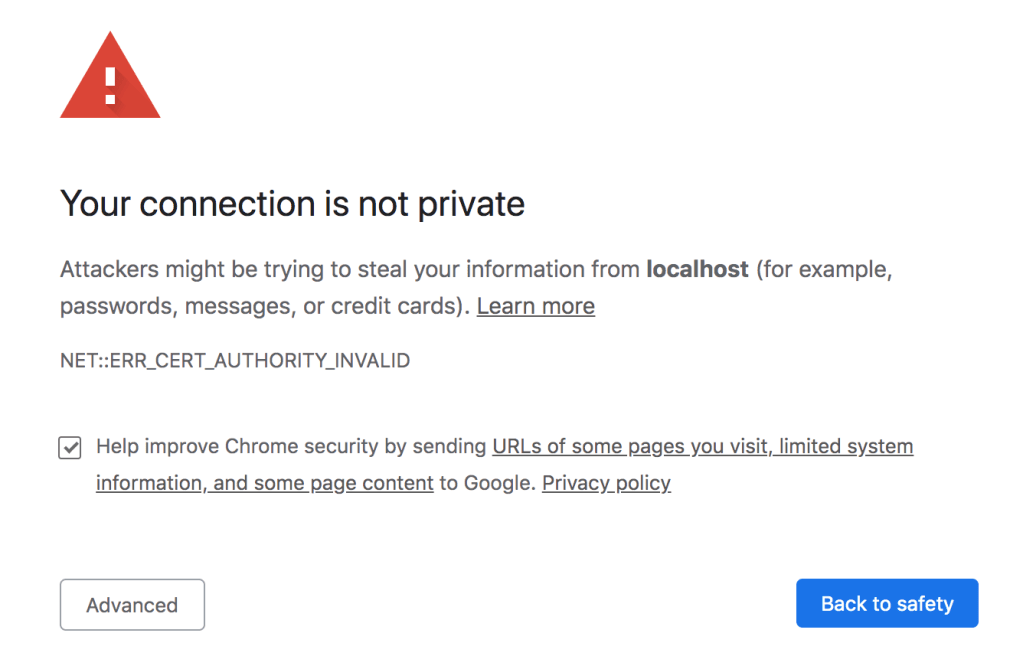
    After running your server, 99% you will get a big warning from your browser:

    chrome certificate error
    Chrome certificate error

    Don’t worry, you can click on Advanced and then click on Proceed to localhost (unsafe)

    That’s because the browser does not recognize your certificate as trusted. Remember we created it and it comes from our machine and not from an established certificate authority

    Guide based on https://medium.com/@nitinpatel_20236/how-to-create-an-https-server-on-localhost-using-express-366435d61f28

    Photo by Florian Klauer on Unsplash

    Share this:

    • Click to share on X (Opens in new window) X
    • Click to share on LinkedIn (Opens in new window) LinkedIn
    • Click to share on Reddit (Opens in new window) Reddit
    • Click to email a link to a friend (Opens in new window) Email
    Like Loading…
  • 5 reasons to choose WordPress as your content management tool

    December 23rd, 2019

    As Engineer I installed WordPress many times, facing issues such as performance and security. When you host WordPress by your own, security is a headache because it’s a super known tool with lots of exploits so you receive strange HTTP requests all the time, trying take advantage of some vulnerability.

    To delegate is something you learn over the time and to host the things you build is maybe the first thing you should think to delegate.

    WordPress.com offers the possibility to host your instance and depending on your business you have different plans that give you more or less flexibility. I will describe 5 reasons that I consider when I need to implement a CMS (Content Management System) solution.

    1 – Popularity

    One of the first question many people (including myself) asks is “who is using it?” And the answer is: a lot of people! That means that many sites you visit in a daily basis use WordPress, including this awesome blog ๐Ÿ™‚

    If you google “WordPress market share” you will get different numbers such as 30%, 40%. I don’t know exactly but at least 1% means a lot of sites.

    And why is so used? Well, continue reading…

    2 – Flexibility

    Photo by Webaroo.com.au on Unsplash
    • Host by your own: you can download a zip file, upload to your host, edit a config file and that’s it.
    • Host in wordpress.com
    • Free and paid themes: you can change how your site looks like with just one click. And the most important: most of the themes are mobile friendly.
    • Total control when you host it since you have access to the source code
    • Plugins. There are literally one plugin for everything you need and most of them are free or at least a free entry level.
    • Monetize. Paid or self hosted you can install ads to monetize your site. In my case my plan allows me to add ads with more or less flexibility.

    3 – SEO

    You may write awesome content but will be kind of hidden if searching bots can’t read your site properly. The good news is most of the themes are SEO friendly so you won’t have to worry about that. Anyway , standards and the way Google scans your site changes over the time so it’s a good practice to be updated once a year what are the new tags / best practices to be implemented.

    4 – Free and paid plans

    Photo by Fabian Blank on Unsplash

    You can have your wordpress site just for free. Just create an account at wordpress.com and start writing your content. Paid plans allows you, among other tings:

    • Monetize
    • Your site under your own domain: example.com
    • Install more advanced plugins
    • Edit layouts by adding pre-built widgets

    5 – Awesome editor

    To write content is a pleasure, the Gutenberg editor is awesome!

    You don’t need to touch html to make your magic like in old times.

    Wordpress Gutenberg editor
    WordPress Gutenberg editor. By wordpress.com

    See more about Gutenberg editor at https://wordpress.org/gutenberg/

    WordPress.com

    Photo by Fikret tozak on Unsplash

    Share this:

    • Click to share on X (Opens in new window) X
    • Click to share on LinkedIn (Opens in new window) LinkedIn
    • Click to share on Reddit (Opens in new window) Reddit
    • Click to email a link to a friend (Opens in new window) Email
    Like Loading…
โ†Previous Page
1 … 19 20 21 22 23 … 25
Next Pageโ†’

  • LinkedIn
  • GitHub
  • WordPress

Privacy PolicyTerms of Use

Website Powered by WordPress.com.


Loading Comments...
 

    • Subscribe Subscribed
      • javaniceday.com
      • Already have a WordPress.com account? Log in now.
      • javaniceday.com
      • Subscribe Subscribed
      • Sign up
      • Log in
      • Report this content
      • View site in Reader
      • Manage subscriptions
      • Collapse this bar
    %d