javaniceday.com

  • Home
  • AboutAbout me
  • Subscribe
  • SalesforceSalesforce related content
  • Node JSNodejs related content
  • JavaJava related content
  • Electric Vehicles
  • Autos Eléctricos
  • Estaciones de carga UTE
  • Mapa cargadores autos eléctricos en Uruguay
  • Getting some insights from Jacoco html report

    January 29th, 2023

    Jacoco is a tool used to generate detailed reports on code coverage. It is an essential part of a software developer’s toolkit, since it helps determine what portions of a project’s code were actually tested. Jacoco produces HTML reports that display code coverage information in an easy to read format.

    Context

    After running the Jacoco report generator we can open it and see the coverage results. There are some results the I wanted to know, for example, how many packages contain uncovered classes and how many contain coverage under a given threshold, in this case, I used 60%. So I build a script to count them and print in the browser’s console. So, step into Jacoco’s report tab and paste this script in your browser console to execute it and see the output

    Script

          
    const table = document.getElementById("coveragetable");
    const row = table.rows;
    let uncoveredPackages = 0;
    let columnFound = false; // the instructions coverage
    let thresholdCoverage = 60;
    let packagesUnderThreshold = 0;
    let totalPackages = 0;
    let i = 0;
    while (!columnFound && i < row[0].cells.length) {
      // Getting the text of columnName
      const str = row[0].cells[i].innerHTML;
      if (str.search("Cov.") != -1) {
        if (!columnFound) {
          // this is the first column with coverage for instructions the next "Cov." column is the one for branches
          columnFound = true;
          // iterate every row but the head and foot
          for (let j = 1; j < row.length - 1; j++) {
            const content = row[j].cells[i].innerHTML;
            const cov = parseFloat(content);
            totalPackages++;
            if (cov === 0) {
              uncoveredPackages++;
            }
            if (cov < thresholdCoverage) {
              packagesUnderThreshold++;
            }
          }
        }
      }
      i++;
    }
    console.log(`total packages: ${totalPackages}`);
    console.log(`uncovered packages: ${uncoveredPackages}`);
    console.log(`packages under  ${thresholdCoverage}%: ${packagesUnderThreshold}`);


    Output

    total packages: 226

    uncovered packages: 60

    packages under 60%: 157

    Photo by Ryutaro Uozumi on Unsplash

    Share this:

    • Click to share on X (Opens in new window) X
    • Click to share on LinkedIn (Opens in new window) LinkedIn
    • Click to share on Reddit (Opens in new window) Reddit
    • Click to email a link to a friend (Opens in new window) Email
    Like Loading…
  • pg-promise self signed certificate error in Postgres

    January 29th, 2023

    PG-Promise is a popular Node.js library for interacting with PostgreSQL databases. Unfortunately, it does not always work with self-signed SSL certificates generated by Postgres. If you’re seeing errors related to self-signed certificates when using PG-Promise, here is how to fix the issue.

    If you are using Node.js with some of these packages: pg-promise or pg probably you are facing this issue.

    Error: self signed certificate

    To fix this issue you have to use the package with the following recommendations

    The issue occurrs when we try to use the module this way:

          
    const pgp = require('pg-promise')();
    const db = pgp('postgres://john:pass123@localhost:5432/products');


    Based on
    https://github.com/vitaly-t/pg-promise/wiki/Connection-Syntax

    “Please note that overriding defaults via pg.defaults does not work for all parameters”

    So if you use defaults configs like this, it will throw the SSL error anyway

          
       pgp.pg.defaults.ssl = {
          rejectUnauthorized: false
      }


    This is the right way to use it:

          
    let ssl = null;
    if (process.env.NODE_ENV === 'development') {
       ssl = {rejectUnauthorized: false};
    }
    
    const config = {
       host: 'localhost',
       port: 5432,
       database: 'my-database-name',
       user: 'user-name',
       password: 'user-password',
       max: 30, // use up to 30 connections
       ssl:ssl
    };
    
    // Or you can use it this way
    const config = {
       connectionString: 'postgres://john:pass123@localhost:5432/products',
       max: 30,
       ssl:ssl
    };
    
    const db = pgp(config);
      
    
    Photo by Nathan Dumlao on Unsplash

    Share this:

    • Click to share on X (Opens in new window) X
    • Click to share on LinkedIn (Opens in new window) LinkedIn
    • Click to share on Reddit (Opens in new window) Reddit
    • Click to email a link to a friend (Opens in new window) Email
    Like Loading…
  • How to download a file from Salesforce using Java Rest API

    January 29th, 2023

    Downloading a file from Salesforce using Java is not as difficult as it may seem. With the right tools and knowledge, you can quickly and easily download any type of file from Salesforce via a Rest API. To get started, you’ll need a few software tools and a few lines of code.

    Let say we want to download a file stored in Salesforce. Have in mind we said a File and not an Attachment (the old way to deal with files in Salesforce), so we’ll have to deal with ContentDocument, ContentVersion, ContentDocumentLink, etc.

    Agenda:

    • Salesforce security token
    • Partner API
    • Salesforce Rest API
    • Store a file

    Implementation

    We are going to use force-partner-api dependency to get a session id after login

    If we use Maven, our pom.xml will have this dependency

    <dependency>    
      <groupId>com.force.api</groupId>     
      <artifactId>force-partner-api</artifactId>     
      <version>51.0.0</version>
    </dependency>

    Let’s have some constants to keep our params in one place.

    private static final Logger LOG = Logger.getLogger(Main.class.getName());
        private static final String USERNAME = "********";
        private static final String ACCESS_TOKEN = "********";
        private static final String PASSWORD = "********" + ACCESS_TOKEN;
        private static final String INSTANCE_URL = "https://********-dev-ed.my.salesforce.com";
        private static final String API_VERSION = "51.0";
        private static final String SALESFORCE_FILE_ID = "0684W00000AzWoiQAF"; // ContentVersion id    private static final String LOCAL_FILE_FULL_NAME = ""/tmp/sf-java.png"";

    Important: the ACCESS_TOKEN constant represents the Salesforce security token you get from Settings -> Reset My Security Token

    When you access Salesforce from an IP address that isn’t trusted for your company, and you use a desktop client or the API, you need a security token to log in. What’s a security token? It’s a case-sensitive alphanumeric code that’s tied to your password. Whenever your password is reset, your security token is also reset.

    After you reset your token, you can’t use your old token in API applications and desktop clients.


    The method to get the file (download and save it in our local disk)

    private static void getFile(String sessionId) throws Exception {
            String urlString = INSTANCE_URL + "/services/data/v" + API_VERSION + "/sobjects/ContentVersion/" + SALESFORCE_FILE_ID + "/VersionData";
            LOG.info(urlString);
            URL url = new URL(urlString);
            HttpURLConnection con = (HttpURLConnection) url.openConnection();
            con.setRequestMethod("GET");
            con.setRequestProperty("Content-Type", "application/octet-stream");
            con.setRequestProperty("Authorization", "OAuth " + sessionId);
            LOG.info("Status " + con.getResponseCode());
            LOG.info("Status message " + con.getResponseMessage());        // store the file in our disk       Files.copy(con.getInputStream(), Paths.get(LOCAL_FILE_FULL_NAME) , StandardCopyOption.REPLACE_EXISTING);    }
            
        }

    Imports you will need

    import java.io.*;
    import java.net.HttpURLConnection;
    import java.net.URL;
    import java.nio.file.Files;
    import java.nio.file.Paths;
    import java.nio.file.StandardCopyOption;
    import java.util.logging.Logger;
    
    import com.sforce.soap.partner.Connector;
    import com.sforce.soap.partner.GetUserInfoResult;
    import com.sforce.soap.partner.PartnerConnection;
    import com.sforce.ws.ConnectionException;
    import com.sforce.ws.ConnectorConfig;

    The method to get our session id

      private static PartnerConnection getConnection() throws ConnectionException {
            ConnectorConfig enterpriseConfig = new ConnectorConfig();
            enterpriseConfig.setUsername(USERNAME);
            enterpriseConfig.setPassword(PASSWORD);
            enterpriseConfig.setServiceEndpoint(INSTANCE_URL + "/services/Soap/u/" + API_VERSION);
            enterpriseConfig.setAuthEndpoint(INSTANCE_URL + "/services/Soap/u/" + API_VERSION);
            return Connector.newConnection(enterpriseConfig);
        }
    

    The main method to call our method from above

    public static void main(String[] args) {
            try {
                LOG.info("Start");
                PartnerConnection conn = getConnection();
                GetUserInfoResult userInfo = conn.getUserInfo();
                LOG.info(userInfo.getOrganizationName());
                LOG.info(conn.getConfig().getSessionId());
                getFile(conn.getConfig().getSessionId());
                LOG.info("End");
            } catch (Exception e) {
                LOG.log(Level.SEVERE, e.getMessage());
                e.printStackTrace();
            }
        }

    Share this:

    • Click to share on X (Opens in new window) X
    • Click to share on LinkedIn (Opens in new window) LinkedIn
    • Click to share on Reddit (Opens in new window) Reddit
    • Click to email a link to a friend (Opens in new window) Email
    Like Loading…
  • Redirect all requests from HTTP to HTTPS in Node.js and Express

    January 29th, 2023

    Express.js is a fast and minimalist web application framework for Node.js. It provides a simple and robust set of features for building web applications and APIs. With Express.js, you can easily handle HTTP requests, define routes, and manage middleware functions. It is known for its flexibility, scalability, and ease of use, making it a popular choice for developing server-side applications in JavaScript. Express.js also has a vibrant ecosystem with a wide range of plugins and extensions that help developers build web applications quickly and efficiently.

    Redirecting all requests from HTTP to HTTPS is an important measure for ensuring website security. If your website runs on Node.js and Express, then you can easily enable this feature with the help of middleware.

    When creating web applications in Node.js and Express, it is important that all requests are redirected from an unsecured HTTP connection to a secure HTTPS connection. This will ensure that your website is secure and all data sent over the internet is encrypted.

    In this tutorial, we will show you how to redirect all requests from HTTP to HTTPS in Node.js and Express.

    It starts by creating a middleware for your Express app that will check for a secure connection and redirect if necessary.

    The first step will be to create a method to guess if the HTTP request comes from HTTP or HTTPS (secure or not secure). In some contexts like AWS or Heroku, you will have to ask by the header x-forwarded-proto instead of req.secure.

    Have in mind that req.secure will return always false if there is a load balancer that redirects internally through HTTP. So let’s cover both scenarios

    /**
     * @param req express http request
     * @returns true if the http request is secure (comes form https)
     */
    function isSecure(req) {
      if (req.headers['x-forwarded-proto']) {
        return req.headers['x-forwarded-proto'] === 'https';
      }
      return req.secure;
    };

    And then add this code in your app.js. Have in mind we are not redirecting to HTTPS if we are in our development or testing environment but you can skip them if you want and redirect them always.

    Add this block right after const app = express();. If you add it at the end, probably another declared route will response and our block won’t be executed.

    // redirect any page form http to https
    app.use((req, res, next) => {
      if (process.env.NODE_ENV !== 'development' && process.env.NODE_ENV !== 'test' && !isSecure(req)) {
        res.redirect(301, `https://${req.headers.host}${req.url}`);
      } else {
        next();
      }
    });

    Now all requests will be redirected to HTTPS if you access through HTTP regardless the full URL


    Share this:

    • Click to share on X (Opens in new window) X
    • Click to share on LinkedIn (Opens in new window) LinkedIn
    • Click to share on Reddit (Opens in new window) Reddit
    • Click to email a link to a friend (Opens in new window) Email
    Like Loading…
  • Lightning data table conditional cell color

    January 29th, 2023

    Are you looking to add a bit of personality and flair to your lightning data table? Conditional cell color gives designers and developers the opportunity to transform their table into something unique and eye-catching.

    With conditional cell color, you are able to control the color of a cell and its contents based on the value of a particular item in the table. This means that each cell in a row can have its own distinct color, letting you highlight important information, emphasize data, and make the table look more visually appealing.

    Expected result

    Salesforce Lightning is a component-based framework for building user interfaces on the Salesforce platform. It provides a modern and efficient way for developers to create and deploy custom user interfaces that can run on any device, including desktops, laptops, tablets, and smartphones.

    A Lightning Component is a reusable unit of code that implements a specific feature or functionality. Components can be composed into larger applications and can be easily reused and customized to meet different business needs. They are written in Aura, a proprietary JavaScript-based language, and use the Lightning Data Service to communicate with the Salesforce server.

    Lightning Components provide a number of benefits, including faster performance, improved user experience, and greater customization options compared to traditional Salesforce user interfaces. They are an essential part of the Salesforce Lightning platform and are widely used by organizations to build custom applications and extend the functionality of the Salesforce platform.

    Lightning data tables allow users to customize the colors of cells in a table based on the values of the cell using conditional formatting. This is a powerful tool for quickly identifying trends and outliers in data sets. With Lightning data tables, Salesforce developers can set color thresholds to automatically color cells according to whether their value is above/below a certain value or between two values. This feature is especially useful for displaying numerical values such as sales data, which often need to be highlighted at a glance so that users can quickly identify areas for improvement.

    Let say you want to highlight a cell in a Lightning data table (lightning:datatable) when a specific value is invalid. In our example, we want to display those invalid emails in red.

    The UI component

    <aura:attribute name="data" type="Object"/>
    <aura:attribute name="columns" type="List"/>
    <aura:handler name="init" value="{! this }" action="{! c.doInit }"/>
    
    <lightning:datatable
                                 columns="{! v.columns }"
                                 data="{! v.data }"
                                 keyField="id"/>
    

    The Component’s JS controller

    doInit : function(component, event, helper) {
            component.set('v.columns', [
                { label: 'First Name', fieldName: 'firstName', type: 'text' },
                { label: 'Last Name', fieldName: 'lastName', type: 'text' },
                { 
                    label: 'Email', 
                    fieldName: 'email', 
                    type: 'text',
                    cellAttributes: {
                        class: {
                            fieldName: 'emailCellClass'
                        }
                    }
                }
            ]);
            
            component.set('v.data', [
                {
                    firstName: "Emelie", 
                    lastName:"Sloan", 
                    email: "valid@email.com", 
                    emailCellClass: 'slds-truncate'
                },
                {
                    firstName: "John", 
                    lastName: "Jackson", 
                    email:"invalid@email.com", 
                    emailCellClass : "slds-truncate slds-text-color_error"
                }
            ]);
        },

    Share this:

    • Click to share on X (Opens in new window) X
    • Click to share on LinkedIn (Opens in new window) LinkedIn
    • Click to share on Reddit (Opens in new window) Reddit
    • Click to email a link to a friend (Opens in new window) Email
    Like Loading…
  • Sitemap xml creation

    January 29th, 2023

    Creating an up-to-date Sitemap.xml file is an essential part of optimizing a website for search engine rankings. A sitemap is an XML file that contains information about all pages (URLs) of a website, letting search engines know when they have been updated and when pages are newly added.

    Why?

    A sitemap is very important if you want to search engines discover and index your site properly.

    Your site is a jungle of HTML, CSS, and JavaScript files so the more you make it easier for search engines, the better.
    A sitemap.xml file is one of the most and easiest ways to implement.

    No matter the language you are using in your site, this is the right way to create a sitemap.

    What is it?

    A sitemap is a file that search engines like Google Bot can understand to index your site. This file contains all the links to your pages in a special (but not so complicated) format.

    It contains also an important information: how often you update that specific page. This way the bot will visit periodically to index the new changes.

    The protocol

    The Sitemap protocol format consists of XML tags. All data values in a Sitemap must be entity-escaped. The file itself must be UTF-8 encoded. See the protocol:
    https://www.sitemaps.org/protocol.html

    Example of a sitemap.xml


    <?xml version="1.0" encoding="UTF-8"?>
    <urlset xmlns="http://www.sitemaps.org/schemas/sitemap/0.9">
      <url>
        <loc>http://www.example.com/</loc>
        <lastmod>2020-01-01</lastmod>
        <changefreq>monthly</changefreq>
        <priority>0.8</priority>
      </url>
    </urlset>


    The above sitemap only contains one page: the home page. Maybe that’s ok because your site only contains a landing page but let see how do we build a sitemap with more pages.

    If you have more pages to index you will write a new block:

    
      <url>
        <loc>http://www.example.com/catalog?item=12&desc=vacation_hawaii</loc> 
        <changefreq>weekly</changefreq> 
      </url> 


    Typically your sitemap XML file will be hosted at the root of your domain: http://www.mysite.com/sitemap.xml.

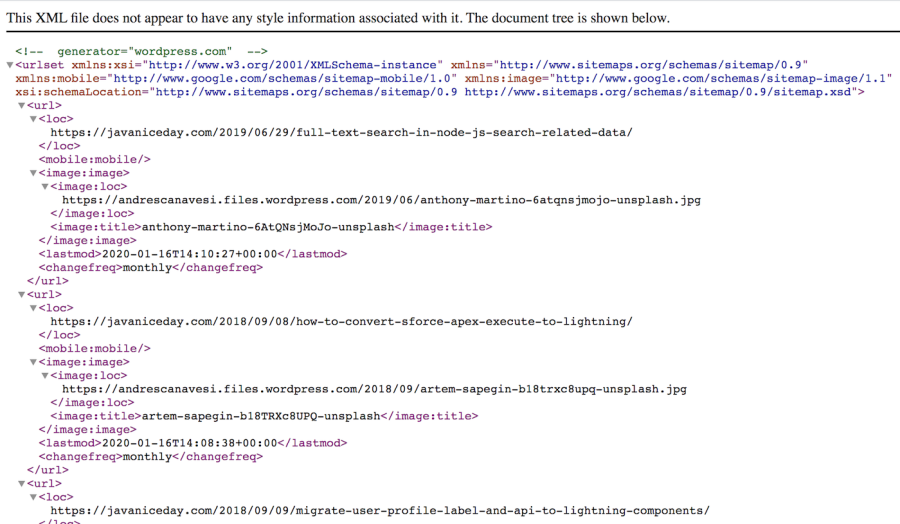
    For instance, you can see the site map of javaniceday.com here:
    https://www.javaniceday.com/sitemap.xml

    sitemap image

    A sitemap in WordPress

    If you use WordPress or any other CMS, probably you will have several plugins to generate a sitemap.xml
    with one click and automatically every time you create new content.
    Otherwise, you will have to create an algorithm by your own.

    Implementation in Node.js

    See an implementation in Node.js here:
    https://www.javaniceday.com/post/how-to-build-a-sitemap-xml-in-node-js-using-express

    Photo by Jilbert Ebrahimi on Unsplash

    Share this:

    • Click to share on X (Opens in new window) X
    • Click to share on LinkedIn (Opens in new window) LinkedIn
    • Click to share on Reddit (Opens in new window) Reddit
    • Click to email a link to a friend (Opens in new window) Email
    Like Loading…
  • Download a Salesforce ContentVersion file using node-fetch

    January 29th, 2023

    Salesforce content management allows users to store information such as documents, images, audio, and video files in their Salesforce org. On occasion, users may require to quickly and easily download certain content items from the Salesforce org using their own custom code.

    Node-fetch is a popular Node.js library used by developers to create applications with the help of middleware, through a programming interface. Node-fetch is especially suitable for downloading Salesforce ContentVersion files.

    Let’s download a file (ContentVersion) from Salesforce using node-fetch
    The way to do it is to make a request to:
    https://myinstance-dev-ed.my.salesforce.com/services/data/v52.0/sobjects/ContentVersion/0688J000000Di2xTBA/VersionData
    First, let’s have a method to get the access token
          
    const getJsForceConnection = async () => {
        const username = "******";
        const password = "******";
        const securityToken = "******";
    
        const salesforceUrl = "https://myinstance-dev-ed.my.salesforce.com";
        const salesforceApiVersion = "52.0";
    
        const options = {instanceUrl: salesforceUrl, loginUrl: salesforceUrl, version: salesforceApiVersion};
       
        const conn = new jsForce.Connection(options);
        await conn.login(username, password + securityToken);
    
        return conn;
    }
          
        
    And then let’s make a request to download the file using node-fetch
          
    const downloadFile = async (conn, salesforceApiVersion, fileId) => {
        const url = `${conn.instanceUrl}/services/data/v${salesforceApiVersion}/sobjects/ContentVersion/${fileId}/VersionData`;
        const ops = {
            method: 'GET',
            headers: {
                'Content-Type': 'application/octet-stream',
                'Authorization': 'OAuth '+conn.accessToken
            }
        };
    
        const fileFullPath = `${os.tmpdir()}/file.txt`; // probably you will need a random file here and also to know the file extension
        const res = await fetch(url, ops);
        const fileStream = fs.createWriteStream(fileFullPath);
    
        if(!res.ok) throw new Error(`error downloading file from ${url} status code: ${res.status} status message ${res.statusText}`);
    
        await new Promise((resolve, reject) => {
            res.body.pipe(fileStream);
            res.body.on("error", reject);
            fileStream.on("finish", resolve);
        });
    }
          
        
    See also
    Get Salesforce ContentVersion file info using node-fetch

    If you want to download the file without using node-fetch see
    https://www.javaniceday.com/post/salesforce-rest-api-download-contentversion

    Photo by kaleb tapp on Unsplash

    Share this:

    • Click to share on X (Opens in new window) X
    • Click to share on LinkedIn (Opens in new window) LinkedIn
    • Click to share on Reddit (Opens in new window) Reddit
    • Click to email a link to a friend (Opens in new window) Email
    Like Loading…
  • How to delete apex trigger using SFDX CLI

    January 29th, 2023

    Deleting an Apex trigger using SFDX CLI can be easily carried out in a few simple steps. Follow these steps to delete an Apex trigger using SFDX CLI:

    To check the list of triggers currently present in your project, run the command:

    sfdx force:apex:trigger:list

    If you have an Apex trigger in Salesforce that you want to delete, you can use the SFDX CLI to do so. Here are the steps to delete an Apex trigger in your Salesforce org using the SFDX CLI.

    <code class="bash">sfdx force:source:delete -m "ApexTrigger:MyTrigger"
    

    And that’s it! You can now easily delete any Apex trigger using SFDX CLI.

    Share this:

    • Click to share on X (Opens in new window) X
    • Click to share on LinkedIn (Opens in new window) LinkedIn
    • Click to share on Reddit (Opens in new window) Reddit
    • Click to email a link to a friend (Opens in new window) Email
    Like Loading…
  • Get Accounts with at least one closed-won opportunity in Salesforce

    January 29th, 2023

    Many companies use Salesforce to manage their business processes. One of the processes that Salesforce can help you with is tracking opportunities. You can use the platform to keep track of which leads or accounts have at least one closed-won opportunity. Knowing which accounts have won an opportunity can help your company target those companies for future sales or marketing efforts.

          
    SELECT Id, Name,BillingCity, BillingState, BillingCountry, CreatedDate
    FROM Account
    WHERE Id IN (SELECT AccountId FROM Opportunity WHERE IsWon = true)
    ORDER BY Name
    LIMIT 10


    Photo by Gwen Weustink on Unsplash

    Share this:

    • Click to share on X (Opens in new window) X
    • Click to share on LinkedIn (Opens in new window) LinkedIn
    • Click to share on Reddit (Opens in new window) Reddit
    • Click to email a link to a friend (Opens in new window) Email
    Like Loading…
  • How to use Queueable interface in Apex

    January 29th, 2023

    Queueable interface allows apex developers to run complex, lengthy, and asynchronous processes that normally couldn’t be run in synchronous invocations. Queueables are simple to implement and provide several advantages over the old @future annotation, making them a great way to make sure your apex code runs reliably and efficiently.

    Async processing is an efficient way to run our algorithms. This mostly involves queues to control how many executions are being processed at a time. Different languages and platforms implement async processing in different ways but the idea is the same. One of the ways (yes, there are more than one) in Salesforce to execute some algorithms that require heavy processing, is the interface Queueable. Another example is the annotation @future but we will put our focus on implementing the interface Queueable in Apex classes.

    One of the big challenges for most of the async processing approaches is the absence of order on the execution. This is kind of “Do it when possible”.

    In this example we are just inserting a new account. You may think that’s not a heavy operation but what if your org is full of Flows (Process Builder) or triggers that are being executed every time an account is inserted? CPU limit errors will appear soon unless you stay away of the main thread execution.

    By using queueable, you will stay away from limits, especially CPU limits.

    public class MyQueueable implements Queueable{
        
        private final String myAttribute;
        
        public MyQueueable(String myAttribute){
            this.myAttribute = myAttribute;
        }
    
        public void execute(QueueableContext context) {
    	System.debug('executing with: '+myAttribute);
           
            // do some heavy work      
            Account a = new Account(Name=myAttribute);
            insert a;
    
            // enqueue another job if you wish
    
        }
        
        public static void enqueueJob(){
            ID jobID = System.enqueueJob(new MyQueueable('my test param'));
            System.debug('job id: '+jobID);
        }
    }

    How to enqueue our job

    ID jobID = System.enqueueJob(new MyQueueable('my test param'));

    Or you can create a method to use it as a shortcut

    MyQueueable.enqueueJob();

    How to monitor Apex Jobs

    You can monitor Apex Jobs from Setup -> Environments -> Jobs -> Apex Jobs. Also you can query your job in case you have to something we them from your code or you just like monitor this way.

    SELECT Status,NumberOfErrors, ExtendedStatus 
    FROM AsyncApexJob 
    ORDER BY CreatedDate DESC

    How to write unit tests for Apex Jobs

    @isTest
    public class MyQueueableTest {
    
        @isTest
        static void myTest() {
            String param = 'tes param '+Math.random();
            // startTest/stopTest block to force async processes to run in the test.
            Test.startTest();        
            System.enqueueJob(new MyQueueable(param));
            Test.stopTest();
            
            // Validate that the job has run by verifying that the record was created.
            Account acct = [SELECT Name FROM Account WHERE Name = :param LIMIT 1];
            System.assertEquals(param, acct.Name);
        }
    }


    Salesforce docs for Queueable

    Share this:

    • Click to share on X (Opens in new window) X
    • Click to share on LinkedIn (Opens in new window) LinkedIn
    • Click to share on Reddit (Opens in new window) Reddit
    • Click to email a link to a friend (Opens in new window) Email
    Like Loading…
←Previous Page
1 … 7 8 9 10 11 … 25
Next Page→

  • LinkedIn
  • GitHub
  • WordPress

Privacy PolicyTerms of Use

Website Powered by WordPress.com.


Loading Comments...
 

    • Subscribe Subscribed
      • javaniceday.com
      • Already have a WordPress.com account? Log in now.
      • javaniceday.com
      • Subscribe Subscribed
      • Sign up
      • Log in
      • Report this content
      • View site in Reader
      • Manage subscriptions
      • Collapse this bar
    %d