Salesforce Inspector Reloaded is a browser extension (Chrome and Firefox) designed to enhance the Salesforce development experience by providing additional tools and features for working with Salesforce orgs. It offers functionalities such as SOQL autocompletion, and export data as JSON or CSV. The “reloaded” version likely indicates an updated or improved iteration of the original Salesforce Inspector extension, offering enhanced capabilities and user experience.
The main difference between Salesforce Inspector and Salesforce Inspector Reloaded lies in the improved features and capabilities offered by the original developer Søren Krabbe .
To install Salesforce Inspector Reloaded, follow these steps:
- Open your web browser and navigate to the web store for your specific browser (e.g., Chrome Web Store for Google Chrome).
- In the search bar, type “Salesforce Inspector Reloaded” and press Enter.
- Look for the official Salesforce Inspector Reloaded extension and click on it to open the extension page.
- Click the “Add to Chrome” or equivalent button to initiate the installation process.
- A pop-up window may appear asking for confirmation to add the extension. Click “Add Extension” to proceed.
- After the extension is added, you should see its icon appear in the browser’s toolbar, indicating that Salesforce Inspector Reloaded has been successfully installed.
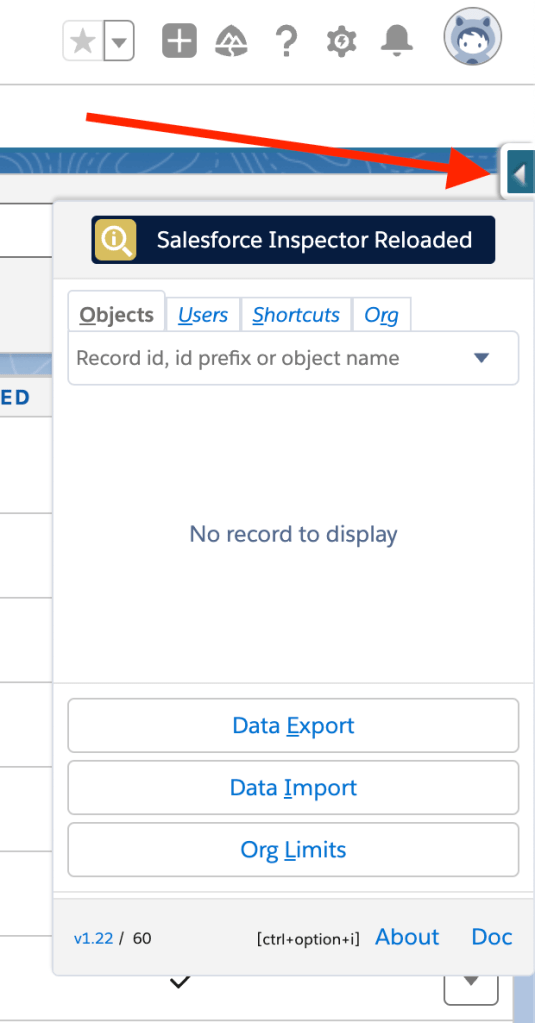
Once installed, you just access to any org you want to inspect and click on the floating arrow at the right of your screen
For a deeper understanding of the technical mechanisms behind Salesforce Inspector Reloaded, you can refer to the official documentation and release notes at https://tprouvot.github.io/Salesforce-Inspector-reloaded. Additionally, the post from the developer Thomas Prouvot available at https://www.salesforceben.com/salesforce-inspector-reloaded/ may offer insights into the underlying workings and architecture of the extension.


 javaniceday.com