How much are you willing to pay to recover your Instagram account? Do you imagine opening your Twitter account one day and realizing you’ve been hacked? Nowadays a super complex password is not enough to avoid being hacked. In fact, most of the time your password is not guessed by trying until it works, a.k.a brutal force. Phishing or just social engineering is the most common way to gain access to your account. Believe it or not, most of the time you are the one that opens the door. If a hacker gains access to your Twitter account and notices you are an influencer and have many followers, he will probably ask you for money to recover your account.
Enabling two-factor authentication in your social networks provides an additional layer of security to protect your accounts from unauthorized access. Here are a few reasons why you should enable it:
Enhanced Account Security: Two-factor authentication adds an extra step to the login process, requiring a second form of verification along with your password. This significantly reduces the chances of someone gaining unauthorized access to your account, even if they manage to obtain your password.
Protects Against Password Breaches: Password breaches are unfortunately common, and many people reuse passwords across different platforms. By enabling two-factor authentication, even if your password is compromised from one website or service, your account will still be protected because the hacker would also require access to your second factor of authentication.
Defends Against Phishing Attacks: Phishing attacks are a common method used by hackers to trick users into revealing their login credentials. Two-factor authentication mitigates the risk of falling victim to such attacks by requiring a second, independent verification step. Even if someone obtains your username and password through phishing, they won’t be able to access your account without the second factor.
Secures Personal Information: Social networks often contain a wealth of personal information, including photos, messages, and personal details. By enabling two-factor authentication, you add an extra layer of protection to prevent any unauthorized individuals from accessing and potentially misusing your personal information.
Peace of Mind: Knowing that your social media accounts are secured with an extra layer of protection can provide peace of mind. You can engage with your followers, share content, and interact with others without worrying as much about the security of your accounts.
Remember, it’s always recommended to use two-factor authentication to strengthen the security of your social media accounts and protect your online presence.
Two-factor authentication is a good way to protect your accounts. It’s kind of a standard approach that many apps support nowadays, such as Twitter, Facebook and Instagram. This way you will need more than your password to enter your account.
For those that are familiar with tokens, two-factor authentication is pretty similar. If you want to send money from your bank account, depending on the amount and the nature of the transaction, your bank will ask you for a token to complete the action
Two-factor authentication is also known as two-step authentication which means, two actions from you will be necessary to gain access to your account.
How to enable two-factor authentication in Instagram?
These steps may change over time but the idea is the same
Open the menu
Go to settings and privacy
Account
Security
Two-factor authentication
Select text message to receive an SMS with a code every time some tries to access to your account . Authenticator App. Is the same as SMS but with an app you install to get the code
Let’s build a small site in Node.js using Express that will have one protected page
We are going to use express generator to generate some scaffolding. If you didn’t install it just type this command to install it globally but if you already know all this stuff you might skip this step
npm install express-generator -g
Generate a site with default options:
express auth-basic
The output of that command will show you the generated files:
Now let’s install the module express-basic-auth that will do the magic.
npm install --save express-basic-auth
Modify the module /routes/users.js
var express = require('express');
var router = express.Router();

const basicAuth = require("express-basic-auth");

const authOptions = {
  challenge: true, //it will cause most browsers to show a popup to enter credentials on unauthorized responses,
  users: {"admin": "admin"},//typically you will get  this info from environment variables or any other source
  authorizeAsync: false,
  unauthorizedResponse: getUnauthorizedResponse,
};

/**
 *
 * @param req
 * @returns {string} the text to be displayed when users hit on cancel prompt button
 */
function getUnauthorizedResponse(req) {
  return "Unauthorized";
}

/**
 *  GET users listing.
 */
router.get('/', basicAuth(authOptions), function(req, res, next) {
  res.send('Users listing area');
});

module.exports = router;
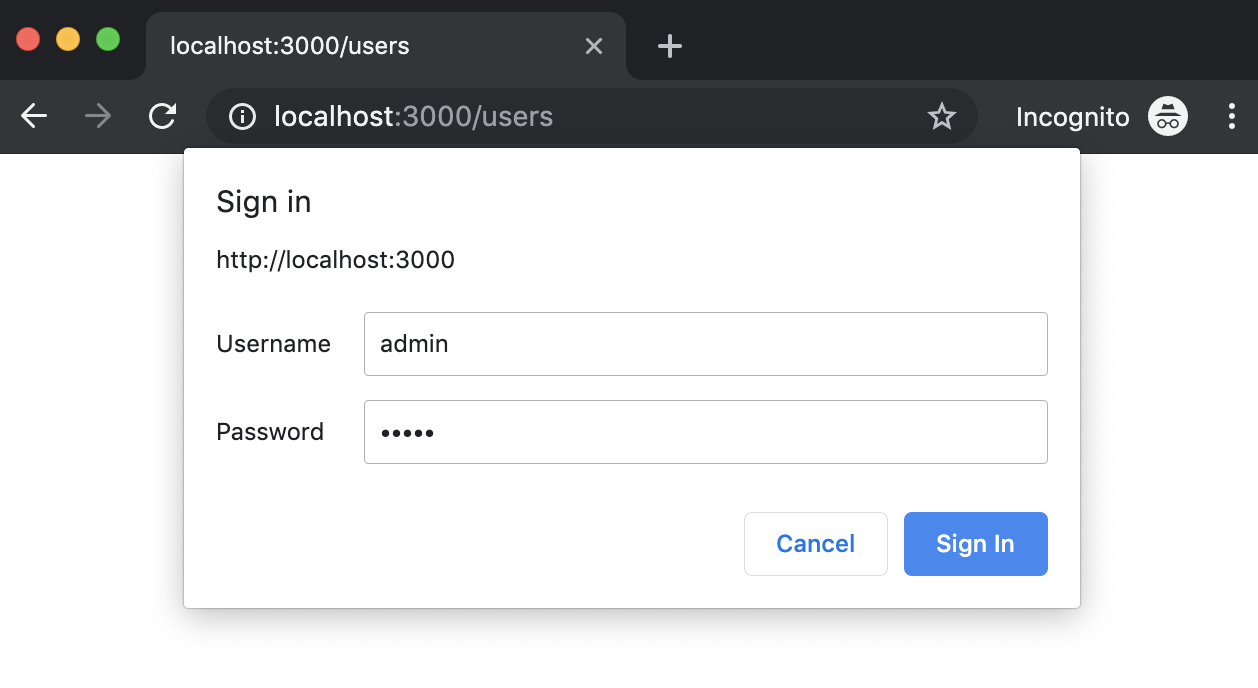
You should see a prompt that asks you for credentials. Try click on cancel button and then refresh the page to introduce the credentials you wrote in the code.
This just in: Google doesn’t want to block third-party cookies in Chrome right now. It has promised to make them obsolete later, though. Wait – what? The search engine giant gave us the latest update this week in the journey towards what it says will be a more private, equitable web. It announced this initiative, […]
Let’s build a small site in Node.js using Express that will have one protected page
Http auth basic prompt dialog
We are going to use express generator to generate some scaffolding. If you didn’t install it just type this command to install it globally but if you already know all this stuff you might skip it and go direct to The Magic section
npm install express-generator -g
Generate a site with default options:
express auth-basic
The output of that command will show you the generated files
var express = require('express');
var router = express.Router();

const basicAuth = require("express-basic-auth");

const authOptions = {
  challenge: true, //it will cause most browsers to show a popup to enter credentials on unauthorized responses,
  users: {"admin": "admin"},//typically you will get  this info from environment variables or any other source
  authorizeAsync: false,
  unauthorizedResponse: getUnauthorizedResponse,
};

/**
 *
 * @param req
 * @returns {string} the text to be displayed when users hit on cancel prompt button
 */
function getUnauthorizedResponse(req) {
  return "Unauthorized";
}

/**
 *  GET users listing.
 */
router.get('/', basicAuth(authOptions), function(req, res, next) {
  res.send('Users listing area');
});

module.exports = router;
You should see a prompt that asks you for credentials. Try click on cancel button and then refresh the page to introduce the credentials you wrote in the code.
You know those Android dialogue boxes that pop up when you first run an app, asking you what permissions you want to give the software? They’re not as useful as we all thought.
Zoom, a company that sells video conferencing software for the business market, is tweaking the app to fix a vulnerability in the Mac software that allows malicious websites to force users into a Zoom call with the webcam turned on.




 javaniceday.com